Administrative rights means absoulte access. But, some times, when you right-click a program, you elevated the UAC and Windows still guards the door with “Access denied.”. The actual fix takes about two minutes. It’s just hidden behind one of Microsoft’s quiet little security changes.
Where This Comes From
Microsoft tightened the screws on the hosts file. Again. Defender’s newer heuristic rules treat any third-party editor touching that file as suspicious (Notepad++ included), even when you’re running it as admin. So the block has nothing to do with your permissions.
But that’s only one cause. Sometimes a recent update flips the file to read-only without telling you. Sometimes the etc folder’s ownership is the problem. Different causes, same insulting error. The fixes below cover all of them, quickest first.
Fix 1 – Use Plain Old Notepad, Run as Admin
Skip the fancy editors for a minute. The built-in Notepad is the one program Defender still trusts with this file.
1 – Click Start and type “Notepad“.
2 – Right-click the Notepad app in the results — the official Microsoft one, not a lookalike.
3 – Select Run as administrator.
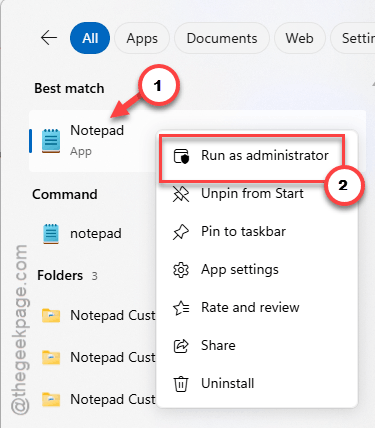
4 – Now, on the Notepad, click File, then Open.
5 – Paste this into the file name box and press Enter.
C:\Windows\System32\drivers\etc\hosts
6 –Just commit your edits, and save the file.
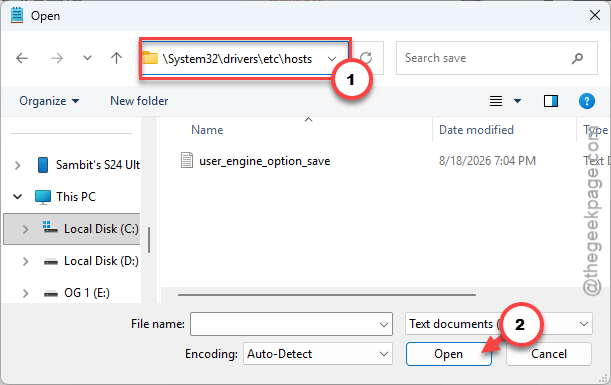
It should save clean, no error. And honestly, that’s the long-term answer too — for this one file, just use Notepad. Fighting Defender over an editor is not worth it.
Fix 2 – Launch Notepad From an Elevated Command Prompt
Same editor, different door. Some machines still trip a file lock on the route in Fix 1. This route bypasses it.
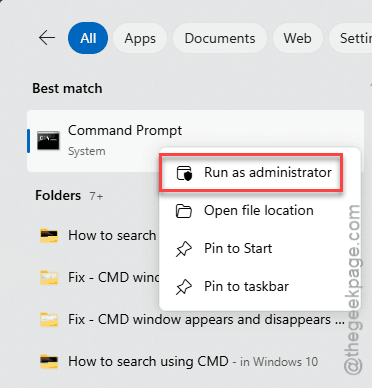
1 – Press the Windows key and type cmd.
2 – Then, right-click the Command Prompt utitlity, and select Run as administrator.
3 – Now, paste this line there, and press Enter.
notepad.exe C:\Windows\System32\drivers\etc\hosts
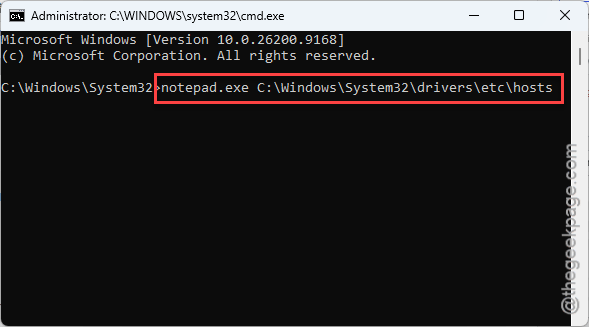
4 – Make your edits and save the file directly.
Fix 3 – Clear the Read-Only Flag
A recent update may have flagged the file read-only. Silently, of course. Why would Windows mention it?
1 – Load up the File Explorer and go here-
C:\Windows\System32\drivers\etc
2 – Right-click the hosts file and select Properties.
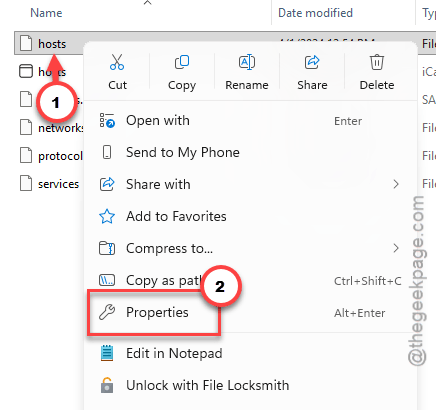
3 – Now, uncheck the Read-only section at the bottom of the General tab.
4 – Then, you can save it using Apply, then OK.
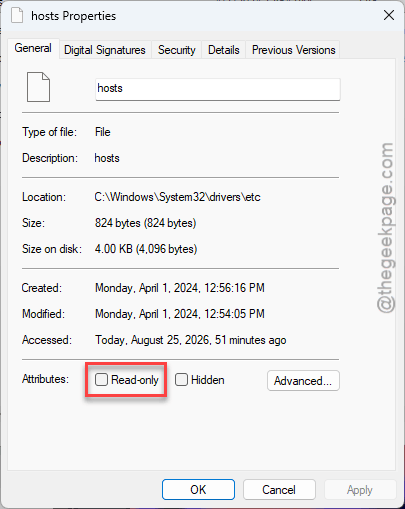
Now try your edit again.
Fix 4 – Edit a Desktop Copy and Swap It Back
The workaround that has outlived a dozen Windows versions. System32 is armored; your Desktop is not.
1 – Go to C:\Windows\System32\drivers\etc in File Explorer.
2 – Copy the hosts file and paste it onto your Desktop.
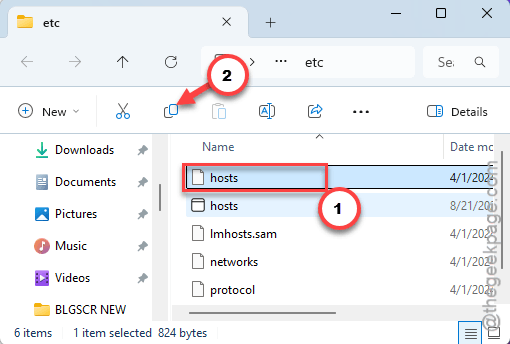
3 – Open the Desktop copy with Notepad.
4 – Make your changes and save.
5 – Drag the edited file back into the etc folder.
6 – Choose Replace the file in the destination and confirm the UAC prompt (the admin permission popup).
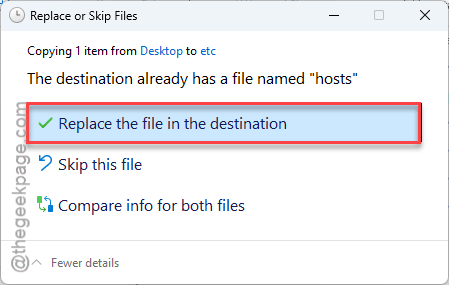
Check if this works.
Fix 5 – Take Ownership of the Etc Folder
You should take the ownership of the folder itself.
1 – Right-click the etc folder and select Properties.
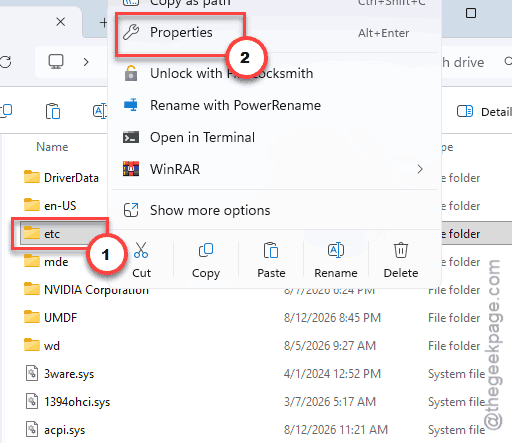
2 – Go to the Security tab.
3 – Click Advanced near the bottom.
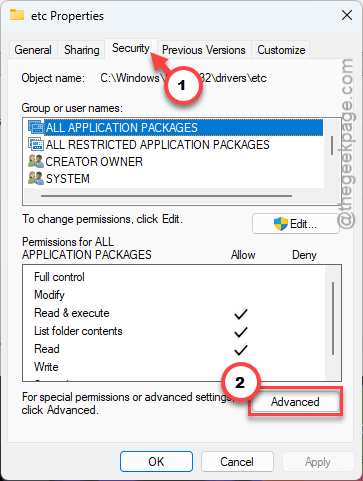
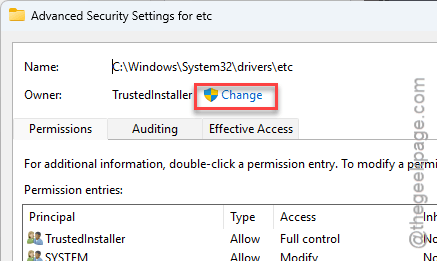
4 – At the top, next to Owner, click Change.
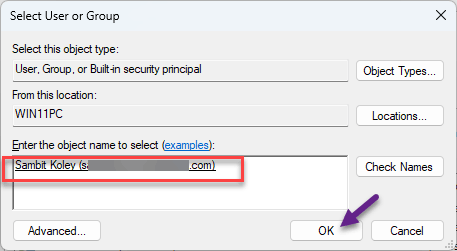
5 – Type your Windows username in the box and click OK.
6 – Click Apply, then OK on both windows.
One caution. On a work machine, don’t do this — ask IT first. Rewriting ownership on System32 folders is exactly the kind of thing that gets flagged.
Fix 6 – Make Defender Leave Notepad++ Alone
Married to Notepad++? Fair. Two parts here: run it elevated, and whitelist it so Defender stops slapping its hand away.
1 – Right-click the Notepad++ shortcut and select Run as administrator.
2 – Click File > Open and go to C:\Windows\System32\drivers\etc.
3 – Change the file type dropdown in the bottom-right corner to All types (*.*). Otherwise the folder looks empty.
4 – Open hosts, edit, and save.
Still blocked? Add the exclusion:
5 – Open Windows Security and click Virus & threat protection.
6 – Click Manage settings.
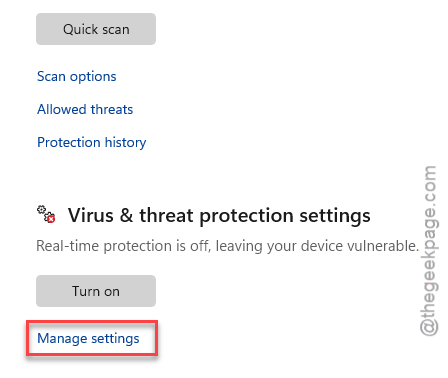
7 – Scroll down and click Add or remove exclusions.
8 – Add notepad++.exe as a process exclusion.
And keep that exclusion narrow — the one process, not whole folders. No point poking a bigger hole in Defender than you need.
People Also Ask
Why can’t I edit the hosts file even as admin?
Three usual reasons. Defender’s newer rules block third-party editors from touching that file. The file itself may be flagged read-only after an update. Or the etc folder’s ownership doesn’t include you. Plain Notepad run as administrator gets past the first cause, which is the most common one.
What can I do to fix the “Windows administrator access denied” error?
You must launch the probematic program as an administrator. The access denial issue stems from the lack of accessing the ownership of the program or the file.