You restart your laptop after an update and instead of Windows, there’s a red box. “Invalid signature detected. Check Secure Boot Policy.” No desktop, no Safe Mode, just the box, every single boot. But the actual repair is a five-minute key reset in the BIOS, and your files are not in any danger.
Why This Happens
Secure Boot works off a signature list stored on the motherboard — a record of what’s allowed to boot and what’s banned. The update rewrote part of that list. And it botched the job.
So now the firmware checks Windows against a corrupted list, decides the signature doesn’t match, and slams the door on its own operating system. Overcautious? Very. That’s the design, though: when in doubt, boot nothing.
The repair is blunt but clean. Wipe the mangled keys, reload the factory set, done. That’s what the five stages below do, in order — treat them as one procedure, not a menu to pick from.
Fix 1 – Get Into the BIOS
The error box blocks Windows, not the firmware. You can still get in underneath it.
1 – Press and hold the power button until the PC shuts off.
2 – Turn it back on and rapidly tap your BIOS key — Del, F2, or F12 on most machines. The boot screen usually names it in a corner.
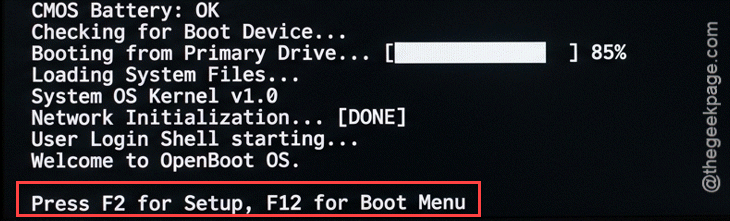
3 – Keep tapping until the setup screen appears instead of the red box.
Missed it and hit the error again? Hold power, restart, tap earlier. And yes, it sometimes takes a few tries.
Fix 2 – Switch Secure Boot to Custom Mode
The key database is locked while Secure Boot runs in Standard mode. Custom mode is the unlock.
1 – Go to the Security or Boot tab — arrow keys, unless your BIOS supports the mouse.
2 – Find Secure Boot Mode.
3 – Change it from Standard to Custom.
New options appear under it once you do. That’s how you know it took.
Fix 3 – Clear the Old Keys
Now purge the corrupted list. Sounds drastic. It isn’t — the next stage puts a clean set right back.
1 – Open Key Management on the same screen.
2 – Select Clear Secure Boot Keys and confirm.
3 – Check the key entries afterward: PK, KEK, DB, and DBX should all read empty or “Not Loaded” (PK is the Platform Key — the master key the rest hang off).
But do not reboot yet. With the keys empty, the machine has no trust list at all.
Fix 4 – Restore the Factory Keys
1 – Still in Key Management, select Install Default Secure Boot Keys — some boards call it Restore Factory Keys.
2 – Confirm the prompt.
3 – Look at the PK state. It should say Loaded again. So should the others.
That single click reinstalled the stock Microsoft trust anchors your board shipped with. Factory fresh.
Fix 5 – Lock It Back to Standard and Reboot
Last stage. And don’t skip it — Custom mode left open is a loose end you don’t want.
1 – Go back to the Secure Boot Mode setting.
2 – Change it from Custom back to Standard.
3 – Press F10 to save, and confirm the exit prompt.
The PC restarts on its own. This boot is the test — no red box means the new keys validated Windows and you’re through.
How to Prevent This
- Never cut power while an update is finishing its reboot. Half-written signatures are exactly how this starts.
- Keep your BIOS updated from the manufacturer’s site. Newer firmware handles signature updates far more gracefully.
- Glance at the Secure Boot state after any BIOS update (press Windows + R, type msinfo32). Should say On. Ten seconds to check.
People Also Ask
How do I fix invalid signature detected in Secure Boot?
Reset the Secure Boot keys from the BIOS. Enter setup with Del or F2, set Secure Boot Mode to Custom, clear the existing keys under Key Management, then install the default factory keys and switch back to Standard. Save with F10 and the error is gone.
How do I fix the invalid signature error on a Razer Blade?
Same key reset as any other machine — Razer’s firmware just hides it. Tap the BIOS key your boot screen names as the laptop starts, then set Secure Boot to Custom, clear the keys, restore the defaults, and return to Standard before saving.
Will clearing Secure Boot keys delete my files?
No. The keys live in a small storage area on the motherboard, completely separate from your drive. Clearing and restoring them changes what the firmware trusts at boot — your Windows install, apps, and personal files are never touched by it.