You can take the control of the level of the location permission you provide to an app on your iPhone. But, what if the ‘Allow access while using app’ permission is missing from your iPhone’s settings? There are certain apps that doesn’t work without your getting your location information (like-Weather, Uber). This guide should help you fix the issue.
Fix 1 – Open the app and retry
Whenever you open an app for the first time after downloading on your iPhone, it asks for the location input from your iPhone. So, you must have to open the app for at least once for the location permission to appear in the Settings.
Step 1 – Open the app that is having this issue on your iPhone.
Step 2 – If this is the first time you are launching the app, you will definitely see the prompt asking your location permission.
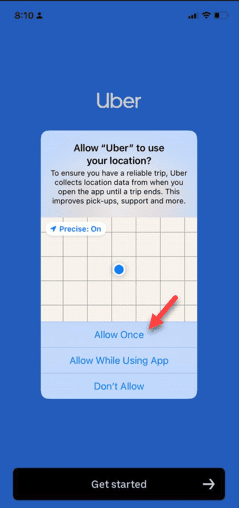
Step 3 – Do not respond to that prompt (do not assert to it or negate it). Just minimize the app and go to the Settings.
Step 4 – Find the app from the list of apps and open the app’s settings.
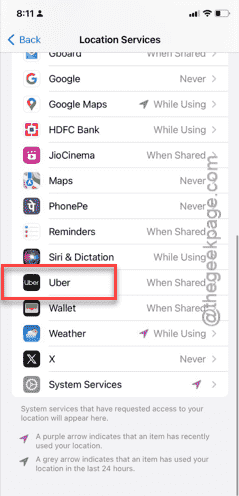
There you will see the location tab in the app settings page. Now, you can take control of the app’s location permission now.
Try changing the location permission from there.
Fix 2 – Reinstall the app
The app that does your location permission, asks for it at the first initialization. So, we have to recreate the same scenario by uninstalling and reinstalling the app.
Step 1 – You have to uninstall the app, first. So, look for the app icon.
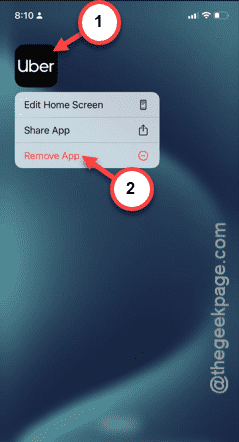
Step 2 – Once you have seen it, hold down the icon and tap “Delete App“.
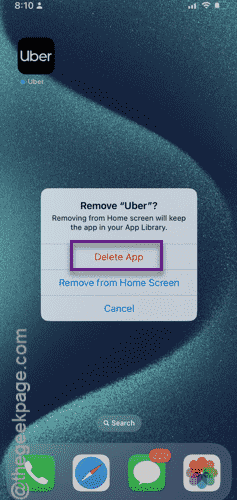
Step 3 – This will be followed by another prompt. Tap “Delete” to finally delete the app from your iPhone.
Step 4 – You may now reinstall the same app from the App Store.
Step 5 – Then, once you have reinstalled the app, open it up.
Step 6 – The app will automatically ask for the location permission. Do not provide the location permission, yet.
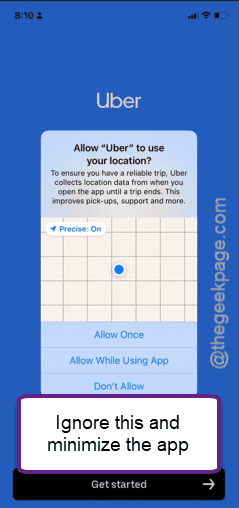
You can now go and preside over the app’s location permission settings manually from the iPhone Settings page.
Fix 3 – Enable the Find My option
If you still can’t change the location permission settings of that particular app, you should try to change the ‘Find My’ settings on your iPhone.
Step 1 – Go to the IPhone Settings.
Step 2 – Just like the steps we’ve mentioned before, open the “Privacy & Security” settings.
Step 3 – Touch the “Location Services” tab.
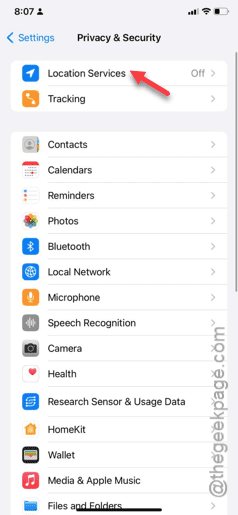
Step 4 – At first, enable the “Location Services” option, if it is not.
Step 5 – Next, open the “Share My Location” settings.
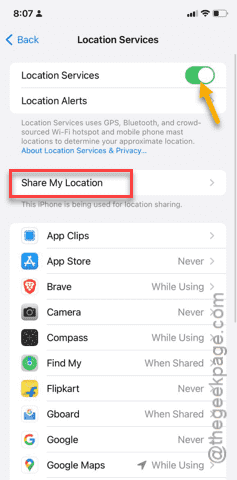
Step 6 – In the following tab, make sure to turn the “Share My Location” feature On.
Step 7 – Open the “Find My iPhone” settings.
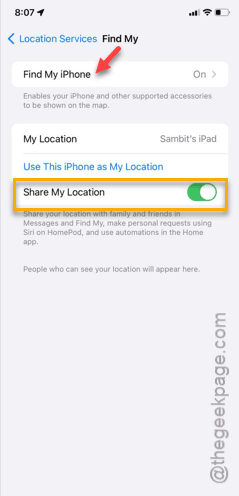
Step 8 – Toggle the “Find My iPhone” feature to On mode.
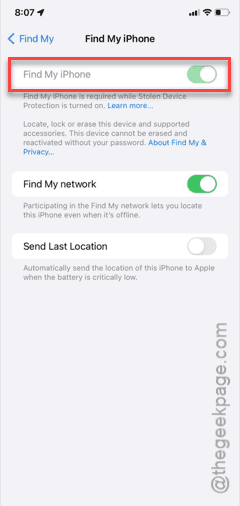
Step 9 – Return to the main Location & Services page.
Step 10 – Go down through the page and open “System Services“.
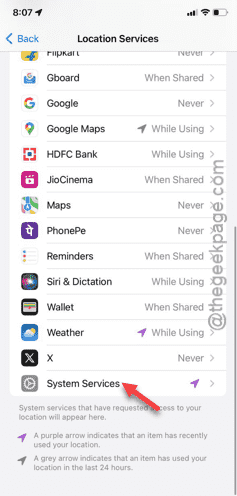
Step 11 – Finally, make sure to turn on all the system services components. If any of these components is disabled, switch it on manually.
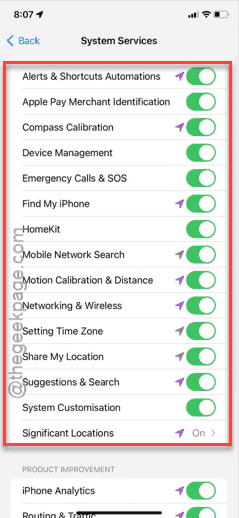
Now try again to see whether you can view the location access settings is available for the specific app settings or not.
If it is still not appearing, just open the problematic app once more. This time, you will see the location option in there for sure.
Hope one of these fixes have helped you solve the problem.