Does your Apple Watch not tapping at the end of a mile or kilometer? This problem has been reported by some of the watch users. Many of the watch users actually use their device to track fitness goals, such as running, jogging, or even walking. The Workout app offers an integrated console to manage all your workouts. So, we must make some changes there so that the Apple Watch alerts you at the end of every mile, kilometer, etc.
Why the Apple Watch is not tapping at the end of a mile?
The gentle taps are very useful for the watch users as the device can alert the user during their workouts. There are many reasons why the mile or kilometer indicator may malfunction on your Apple Watch. Likely, it might be a simple case of a haptic feedback settings gone wrong, or, the workout settings are not correctly configured. Low intensity haptic feedback can be too low for the watch users to distinguish it as the mile indicator. On the other hand, your current workout routine may not be preset to denote the gentle taps or the mile indicator.
Luckily, the solution to this crisis is simpler than it looks. You can set the haptic settings to ‘Prominent’ settings so that you don’t miss any of those mile or kilometer indicators.
Fix – 1 Change the workout preferences
You have to change the ‘Split alerts’ settings so that your watch notifies you about the split of workout (generally 1 km/mile).
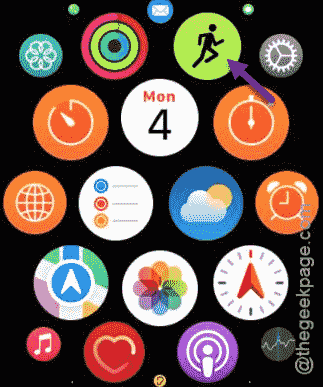
Step 1 – In order to do this, load up the app list on your watch. Open up the Workout app from there.
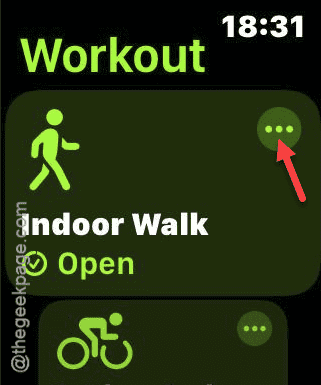
Step 2 – Then, choose the outdoor workout that you do on a daily basis, like – Indoor Workout. Tap the three-dot button next to it.
NOTE – The workout needs to have a distance metric associated to it. Otherwise, this won’t work.
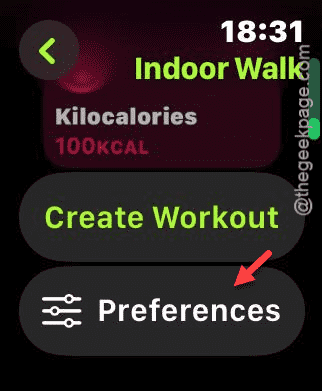
Step 3 – Next, scroll down and open the Preferences settings.
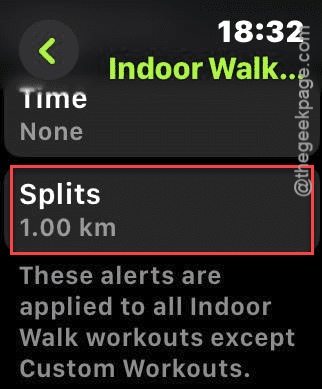
Step 4 – Later, slide down until you have found the Splits section there. Open it up right away.
Step 5 – Make sure the Split Alert is turned On. This particular setting controls the split alert notifications on your watch.
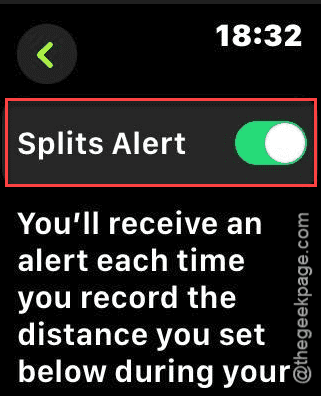
Step 6 – This will alert you on a preset specific interval of 1 kilometer, by default. But, if you want to edit it, you can tap the Distance settings.
Step 7 – Change the values according to your preference.
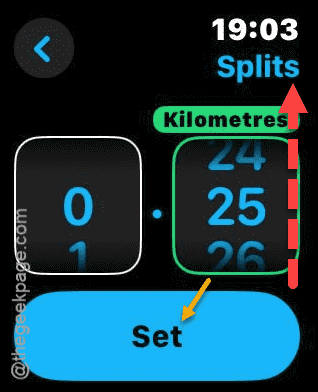
Your Apple Watch will send a notification alert, along with a haptic feedback upon completing the split distances.
See if this works out for you!
Fix 2 – Check the haptics level of the watch
Increase the intensity of the haptic feedback on your Apple Watch so that you don’t miss those gentle taps or mile/kilometer indicators during the workout.
Step 1 – Open up the app list on your watch and reach the Settings utility.
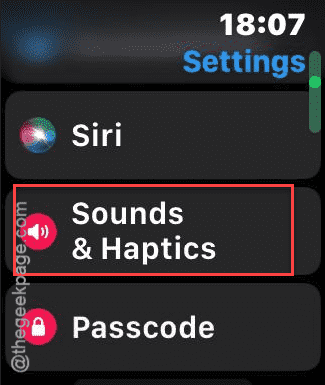
Step 2 – In the Settings page, open the Sound & Haptic settings.
Step 3 – Once you have opened it up, reach the Haptics section. Make sure the Haptics alert is turned on there.
Step 4 – Now, set it to Prominent option.
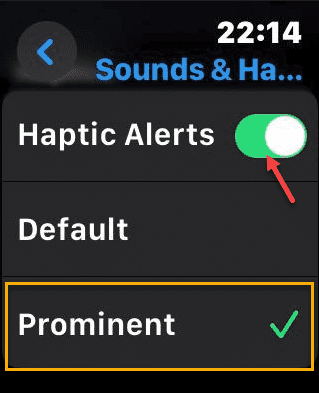
This way, you are getting all the gentle taps from your watch during your workout.
Advantages of having tactile alerts of workout ~
There are several advantages of this particular alert feature on your Apple Watch. One of the key benefits of this feature is that it notifies the user upon the completion of a certain part of their workouts. They can know the distance they have covered without even taking a look at their watch. This also enhances the multitasking experience on the watch in several occasions.