Does your Apple Watch got stuck on a zoomed in screen? It can be extremely problematic for you if you are just seeing a zoomed in watch face. Not only, you will get less information directly from the watch face on the Apple Watch, you will face much difficulty in navigating across the device. This is a dealbreaker issue, where you can’t use your watch at all.
Why the Apple Watch is stuck on zoom screen?
The screen on the Apple Watch can show up in zoomed variant only in one certain condition. Whenever you enable the zoom feature on the Apple Watch, the screen just zooms in, giving you a better view of the contents. But a zoomed-in watch screen can be a real headache to operate, mainly while you are navigating through the watchOS.
You can just disable the zoom out feature on the Apple Watch simply by double tapping the watch screen. But, this is just an accessibility shortcut. But, if you want you may turn off this zoom accessibility feature completely.
Fix – 1 Use the double tap feature
Just double-tap the watch screen on your Apple Watch. This does work only when the watch face is in the zoomed-in state.
Step 1 – Simply, double-tap the watch screen.
Step 2 – This should return the zoom-level to normal mode.
Take a reminder that this is just a quick workaround. See if this works out.
Fix 2 – Disable the zoom accessibility
If you want, you can completely disable the zoom feature on your watch.
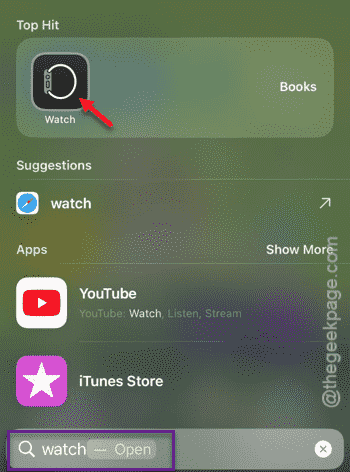
Step 1 – To do this, open up the Watch app.
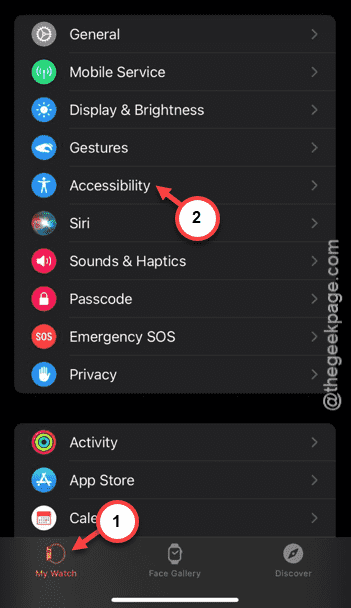
Step 2 – After it loads up, go to the “My Watch” section.
Step 3 – In the Settings page, find the “Accessibility” suite and load that up.
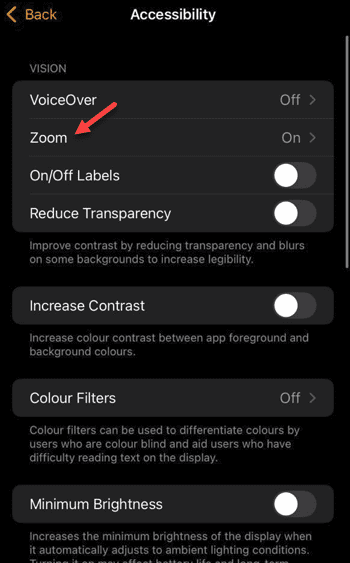
Step 4 – Now, open up the “Zoom” mode.
Step 5 – You must disable this entire feature from there.
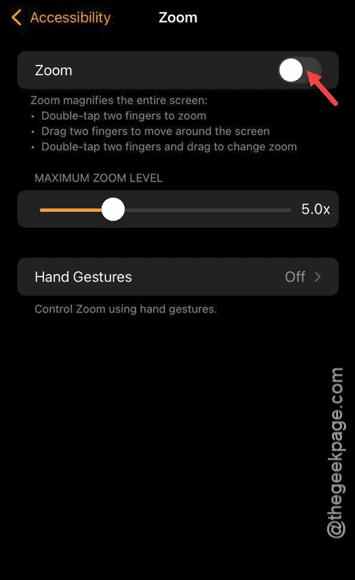
After you have disabled it, the watch screen won’t show up in zoomed mode again. See if that works out for you!