Is the Airplay not working on your iPhone? AirPlay function does need some basic functions to work, like Bluetooth, Wi-Fi. So, if the AirPlay is not working on your iPhone or on other iOS devices, you can fix that problem following these set of solutions.
Fix 1 – Use the correct device
If you have multiple iOS devices on the same network, you must choose the correct device to airplay the contents.
Step 1 – Swipe downward to open the Control Center.
Step 2 – In the Control Center, tap the Airplay button in the Media Center.
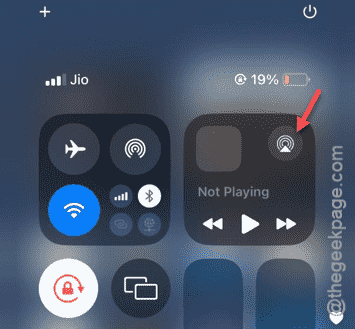
Step 3 – When the Airplay layout hovers on the screen, you will see all the Airplay-supported devices in there.
Step 4 – Select the preferred device from there to choose it to use the AirPlay.
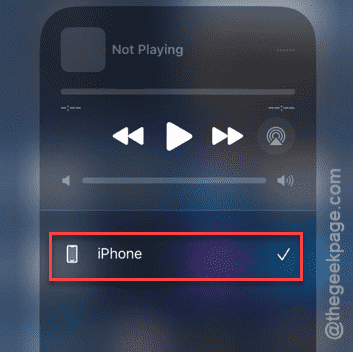
Your content will be air-played on other devices.
If this fix doesn’t work, go to the next solution.
Fix 2 – Set the devices to use the same Wi-Fi
One of the most basic requirement for the AirPlay to function and transmit your content is that both the devices should be on the same Wi-Fi. If any of the devices (like your iPhone) is using mobile data, the other devices won’t show up on your screen.
Step 1 – Connect the display or the other item where you want to Air-Play the content to the same Wi-Fi network to which your iPhone is connected to.
Step 2 – Then, play the content. Open the Control Center from there.
Step 3 – Later, tap the AirPlay button and select the device to stream the content directly there.
Now, you can enjoy the contents on your iPhone directly on the screen.
Fix 3 – Toggle the Flight mode and re-enable that
If the AirPlay doesn’t work even while both the devices are on the same Wi-Fi network, do this –
Step 1 – Use the finger to swipe down to open the Control Center.
Step 2 – Tap the “Flight Mode” button in the panel.
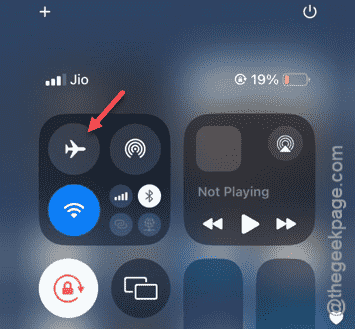
As soon as the Flight Mode is enabled, the carrier network, your iPhone will get disconnected from any and every Bluetooth and Wi-Fi network.
Step 3 – Now, tap the same “Flight Mode” button to revoke the Airplane Mode condition.
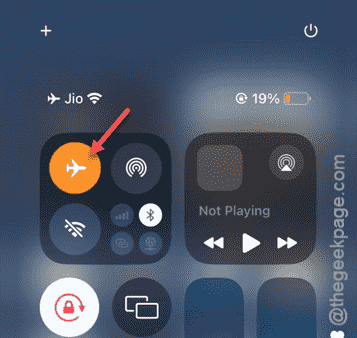
Allow a few seconds for the iPhone to reconnect to the Wi-Fi network.
You can use the AirPlay function once again.
Fix 4 – Restart the iPhone and retry
This problem with the AirPlay function can just be a bug in the system. Restarting the device may help.
Step 1 – Close all the apps on your iPhone.
Step 2 – Next, swipe down to get access to the Control Center.
Step 3 – You will see the ‘Power off’ button right there in the top-right corner of the Control Center.
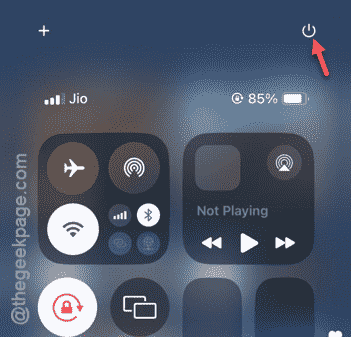
Step 4 – Later, drag the slider across the “Slide it to power off” to switch off the iPhone.
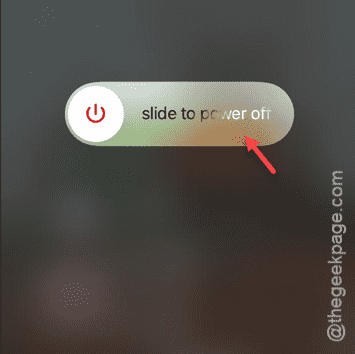
Wait for the iPhone to get switched off. Next, you just have to restart your iPhone.
Fix 5 – Use the latest version of iOS
A bug in the Airplay can cause this problem. So, install the latest version of the iOS to fix this problem.
Step 1 – In your iPhone Settings page, open up the “General” tab.
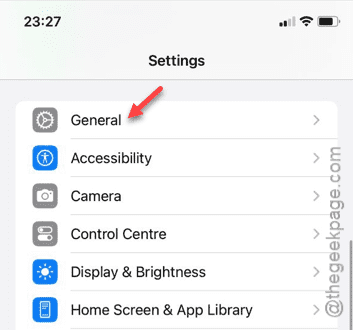
Step 2 – Later, go to the “Software Update” page.
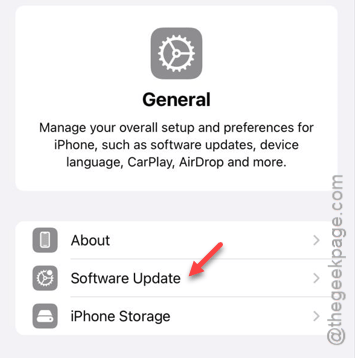
Step 3 – Within a few seconds, you will see any pending updates on the iOS page.
Step 4 – There, tap the “Update Now” button to install the update.

Soon your iPhone will get restarted and when the iPhone gets updated, the Airplay function will work normally.