Is the iPhone display showing yellow bars on the screen? Even if your phone displays just a single bar on the display, it can be quite annoying to work with. In that situation, these fixes will be helpful troubleshooting the issue.
Fix 1 – Disable the True Tone
The true tone on the display can cause the phone display to look a bit of yellowish. You should try disabling the True Tone on the phone display.
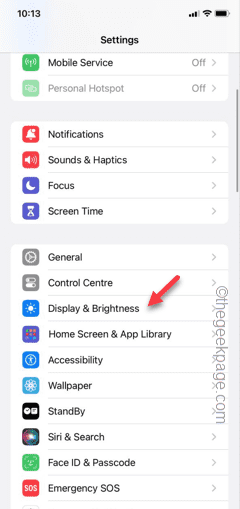
Step 1 – To do this, you must open the Settings on your iPhone.
Step 2 – Next, open the “Display & Brightness” option.
Step 3 – After opening the Display settings, locate the “True Tone” setting.
Step 4 – True tone controls the screen color according to the ambient condition. So, turn it off.
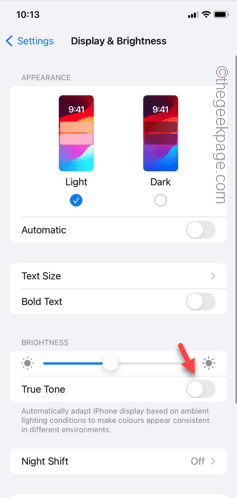
After this, you will notice a definite shift in the color balance on your phone display. If your iPhone is still appearing to be yellowish, follow the next solution.
Fix 2 – Change the Color tint settings
Misconfigured color tint settings on your iPhone settings can be the reason why you are facing this yellow screen issue.
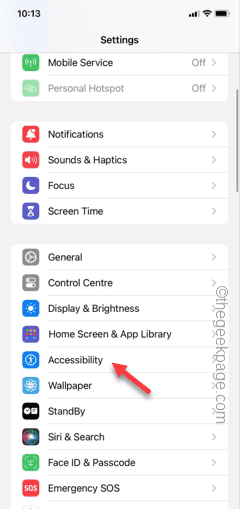
Step 1 – Just go to the Settings home page and open the “Accessibility” option.
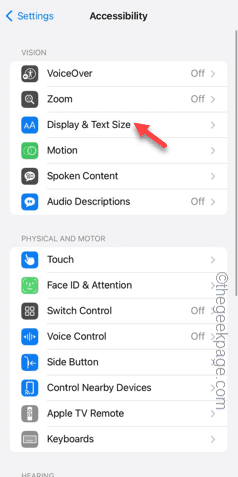
Step 2 – Open the “Display & Text size” option.
Step 3 – Now, you just have to go down, find the “Color Filters” option and open it up.
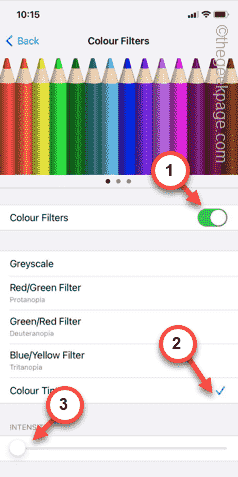
Step 4 – Turn on the Color Filter. Next, select the “Color Tint” option.
Step 5 – Toggle the “Intensity” to the minimum value.
Step 6 – Now, set the “Hue” slider to almost the middle of the screen. This adjusts the color temperature of the screen. So, adjust the slider according to your own preference so that the screen is well-balanced, not too much yellow or blue.
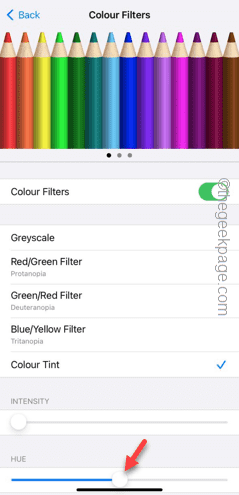
Close the settings panel after this. Check if this works out for you.
Fix 3 – Disable the Night Shift feature
The Night Shift feature makes the display warmer, adding a yellowish tint to the whole display. Try disabling it on your phone to get rid of the yellow screen issue.
Step 1 – After opening the Settings, open the “Display & Brightness” setting.
Step 2 – In that page, scroll down and open the “Night Shift” feature.
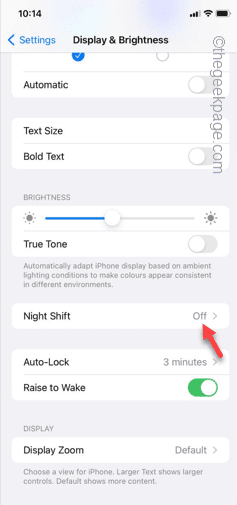
Step 3 – Next, disable the “Night Shift” from the following page.
Step 4 – Turn off the “Scheduled” and “Manually Enable Until Tomorrow” options.
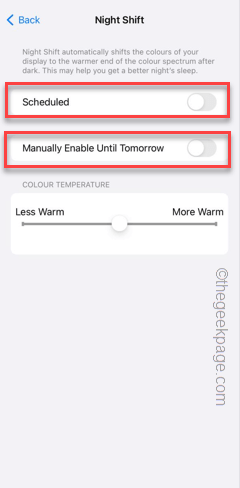
This should fix the yellow screen issue on your iPhone.
Fix 4 – Forcefully restart the iPhone
Force restarting the iPhone should fix the yellow screen on the device.
Step 1 – At first, tap the Volume Up button on the side of the phone and release that.
Step 2 – Next, hit the Volume Down button on the lower side and release it.
Step 3 – After this, press the Power Button on your phone. Keep holding that power button until your phone switches off and the phone restarts.

You may leave the Power Button now as the phone is restarting. Soon you should be seeing your lock screen on your phone. Unlock the device and check.