Did your Thunderbolt 4 dock stop working after getting the recent update to Windows 11 26H2? You may notice that external monitors, USB devices and other peripherals connected to that dock are not working, but there aren’t any error reports in Device Manager. Some users, including owners of Lenovo ThinkPad Universal Thunderbolt 4 Dock (40B0), have reported these symptoms. Check out these fixes to resolve the issue.
Known Issue & Current Status
Users have reported Thunderbolt 4 docking problems after upgrading to Windows 11 26H2, including failures involving the Lenovo ThinkPad Universal Thunderbolt 4 Dock (40B0).
A Lenovo user confirmed that removing Thunderbolt/USB4 driver entries, including hidden devices, and reinstalling the dock’s LAN driver restored connectivity.
Fix 1 – Fully Power-Cycle the Dock
Start with the easy one. The dock has its own small chips that can hold a bit of charge and stay stuck in a bad state, and unplugging the laptop cable alone doesn’t reset them.
1 – Shut down your laptop.
2 – Unplug the Thunderbolt cable from the laptop.
3 – Disconnect everything else from the dock: monitors, Ethernet and USB devices.
4 – Unplug the dock’s power adapter from the dock and from the wall. Leave the dock disconnected from power at least one minute.
5 – Then, press and hold the dock’s power button for at least 30 seconds.
6 – Plug the power adapter back into the dock and wait for its power light to blink.
7 – Connect the Thunderbolt cable to the laptop.
8 – Turn the laptop on, and only then plug your monitors and other devices back into the dock.
The order matters here, so don’t rush steps 6 to 8. If it worked, the laptop starts charging, and the dock shows up in Settings under Bluetooth & devices > USB > USB4 Hubs and Devices.
If this workaround is of no use, proceed to the next fix.
Fix 2 – Update your Thunderbolt Dock Firmware
Sometimes outdated or malfunctioning dock firmware can lead to this sort of issue.
NOTE – Before you update the dock firmware, make sure it is properly connected to a power source. It must not get disconnected/lose power during the updatation process.
1 – At first, disconnect unnecessary USB devices from the dock.
2 – Visit your laptop or dock manufacturer’s official support page.
3 – Look for your exact dock model there.
4 – Then, download the latest compatible dock firmware update utility from there.
5 – Thereafter, run the downloaded setup file and follow the on-screen instructions properly to update the utility.
6 – Finally, restart your device and reconnect the dock.
Check if these helps.
Fix 3 – Remove the Hidden Thunderbolt Drivers and Reinstall the Dock Driver
This is the fix that works most often. One Lenovo owner got it from Lenovo support and had the dock’s light back to white a few minutes later.
NOTE – Removing USB4 host controllers may temporarily disconnect USB4 and Thunderbolt functionality.
1 – Unplug the dock’s Thunderbolt cable from your laptop.
2 – Press Windows + X and click Device Manager.
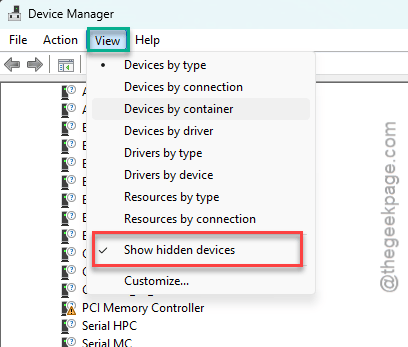
3 – Click View in the menu bar at the top, then click Show hidden devices.
4 – Tap the Universal Serial Bus controllers to expand it.
5 – Right-click only the entries that are related to your issues associated to USB4 or Thunderbolt, and click Uninstall device. Include the faded, grayed-out ones.
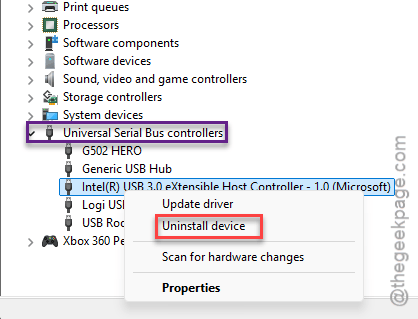
6 – Do the same under System devices and Network adapters for any Thunderbolt or dock entries.
7 – Restart the laptop with the dock still unplugged.
Windows puts back the basic USB4 drivers it needs during that restart, so you won’t be left without them.
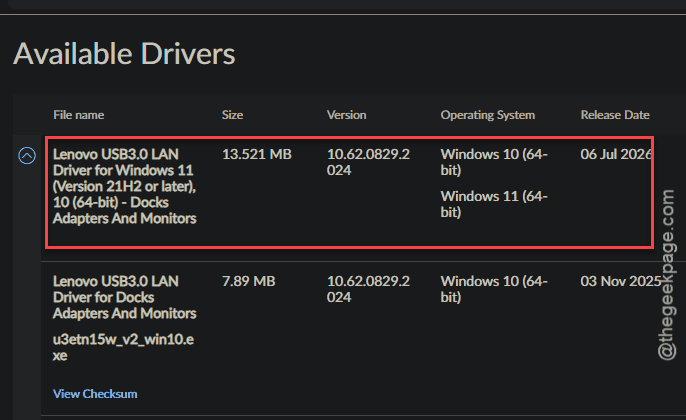
8 – Now, download the latest dock driver package from the respective manufacturer’s website and install them.
9 – Restart the laptop a second time.
10 – Power on the dock and plug its Thunderbolt cable into the laptop once Windows has finished loading.
If you are having this issue with the Lenovo 40B0 dock, the package you want in step 8 is called Lenovo USB3.0 LAN Driver for Docks, Adapters and Monitors. The July-relseased build has solved the problem for a few users. But, do double-check the dock information before you update it manually.
Dell and HP have their own dock driver bundles on their support pages.
On a Lenovo dock, the light should go from yellow to white. Then check your displays, USB devices, Ethernet and charging one by one.
Fix 4 – Turn Off Two Power-Saving Settings
If the dock connects but then drops out, or the laptop freezes when you plug it in, Windows’ power saving may be cutting the link. Two settings are involved.
1 – Open Control Panel and go to Hardware and Sound, then Power Options.
2 – Click Change plan settings next to the plan that’s selected.
3 – Click Change advanced power settings.

4 – Expand PCI Express, then Link State Power Management.
5 – Set both On battery and Plugged in to Off, then click Apply.
6 – Back in Power Options, click Choose what the power buttons do on the left.
7 – Click Change settings that are currently unavailable.
8 – Untick Turn on fast startup and click Save changes.
9 – Shut the laptop down completely (don’t use Restart), wait 10 seconds, and turn it on with the dock connected.
Check if this resolves your issue.
Keep It From Coming Back
- Update the dock driver from the maker’s site before you install the next big Windows feature update. Old dock drivers are what get stuck.
- If you switch docks, remove the old one’s hidden entries in Device Manager like in Fix 2 so they don’t pile up.
People Also Ask
Why did my Thunderbolt dock stop working after a Windows 11 update?
Windows 11 26H2 changed how it manages USB4 and Thunderbolt connections. Old hidden drivers and outdated dock drivers from before the update can block the new connection, so the dock looks dead. Removing those hidden entries in Device Manager and installing the maker’s latest dock driver usually fixes it.
What does an amber or yellow light on a Thunderbolt dock mean?
On Lenovo docks, the status light is white when everything is normal, so yellow or amber means the connection to the laptop isn’t working. After the 26H2 update, a yellow light usually points to a driver problem on the laptop. Try a full power-cycle, then a driver reinstall.