Does Adobe PhotoShop 2026 unexpectedly close shortly after launching? You may have noticed that the application sometimes freezes, becomes unresponsive and sometimes produced 0xc00000fd error in Windows Event Viewer. This indicates a stack overflow and may be associated with the licensing-related application components, corrupted preferences or plug-in issues.
What’s Actually Going On
Some Photoshop 2026 users have reported that the application freezes or closes shortly after launch. Sometimes, it ends up displaying exception code “0xc00000fd” in Windows Event Viewer.
The techincal explanation for this problem goes something like this – this code indicates a stack overflow, which can occur when a program exhausts its available call stack.
Adobe Community discussions suggest that licensing-related application components may contribute to certain crashes. However, sometimes a few corrupted preferences, incompatible plugins, damaged font caches can lead to this sort of problem.
Fix 1 – Reset PhotoShop’s Licensing Cache
Adobe’s community manager recommended removing temporary specific licensing-related temporary files and resetting the Photoshop’s UXP plug-in storage.
1 – Load up the Adobe Creative Cloud desktop app.
2 – Now, hit the Ctrl+Alt+T buttons together to load the Creative Cloud Troubleshooter.
3 – Choose the Close Creative Cloud and related processes, and tap Go.
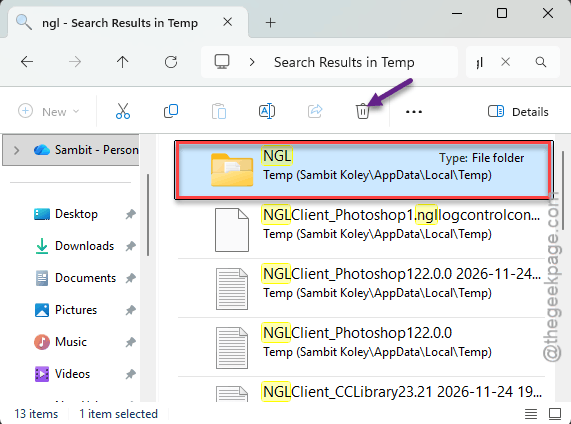
4 – Press Windows + R, type %TEMP%, and press Enter.
5 – Locate the temporary files or folders containing the “*NGL” in their names and remove the matching entries.
6 – Hit the Win+R buttons at once. Go here –
`%APPDATA%\Adobe\UXP\PluginsStorage\PHSP
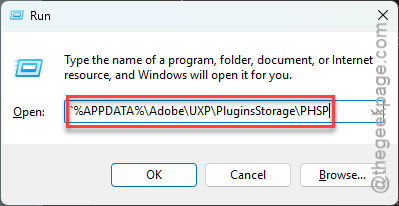
7 – Rename the ‘27‘ or the number folder to something different ( 27_old).
8 – Restart your PC.
Launch the Photoshop through CC and check.
Fix 2 – Start Photoshop Without Plugins
Third-party plugins are a common crash source, especially old ones after a big update. This test takes ten seconds: hold Shift while you double-click the Photoshop shortcut (or while you click it in the Start menu). Keep holding until a box asks about skipping optional and third-party plugins, then click Yes.
If Photoshop stays open this time, one of your plugins is the problem. Update or remove them one at a time to find out which one.
Fix 3 – Reset Photoshop’s Preferences
Damaged preference files can crash Photoshop on every launch. Resetting them puts every setting back to default.
1 – Close Photoshop completely.
2 – Press and hold Ctrl + Alt + Shift.
3 – While holding them, click the Photoshop icon to open it.
4 – Keep holding until a box asks whether to delete the Adobe Photoshop Settings file.
5 – Click Yes.
Photoshop opens to its default start screen. Your workspaces, shortcuts and tool settings are reset, but your files are not touched.
Fix 4 – Delete the TypeSupport Cache
Photoshop also keeps its own font cache, in a folder called TypeSupport. Clearing it forces a clean rebuild.
1 – Close Photoshop and Creative Cloud.
2 – Press Windows + R, paste this, and hit Enter. Don’t forget to replace the <version> with the PhotoShop version that you are using.
%APPDATA%\Adobe\Adobe Photoshop <version>\CT Font Cache
[
NOTE – For older Photoshop versions, like PS 2015 CC, you can look into this folder-
%localappdata%\Adobe
]
3 – Empty the folder.
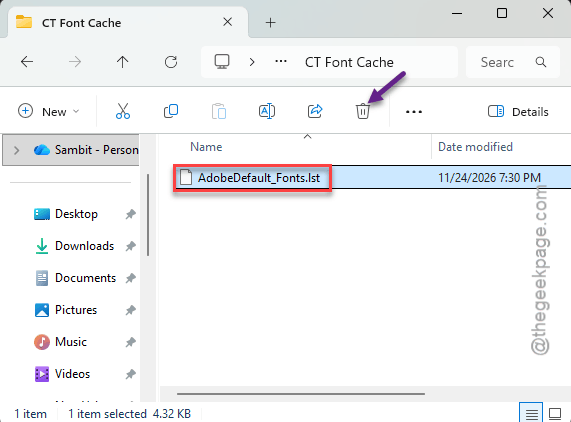
The first launch after this is slower while Photoshop rebuilds the cache. Give it a minute.
Fix 5 – Turn Off Controlled Folder Access for a Test
Test by turning off the Controlled Folder Access globally for a brief few minutes. You can test whether Photoshop is working properly while it is off.
Warning- Controlled Folder access is a security tool that protectes apps from writing to your protected folders. Do this test in a controlled enviroment. As soon as you have tested the function of Adobe Photoshop, reinstate it immediately.
1 – Press the Windows key, type Windows Security, and open it.
2 – Click Virus & threat protection.
3 – Scroll down and click Manage ransomware protection.
4 – Turn the Controlled folder access toggle Off.

5 – Open Photoshop and test it.
Whatever happens, turn the toggle back on afterward. If this was the cause, click Allow an app through Controlled folder access on that same page and add Photoshop, so you can keep the protection on.
Fix 6 – Clear the UXP and CEP Caches
Newer parts of Photoshop, like the Home screen and the Discover panel, are built as small web pages. They run on UXP and CEP (Adobe’s two systems for these panels), and both keep a local cache. A corrupted cache can crash the whole app shortly after launch.
1 – Close Photoshop.
2 – Press Ctrl + Shift + Esc to open Task Manager.
3 – Look for any AdobeCEPHtmlEngine.exe entries. Click each one and click End task.
4 – Press Windows + R, paste %appdata%\Adobe\UXP, and press Enter.
5 – Press Ctrl + A to select everything in that folder, then press Delete.
6 – Press Windows + R again, paste %appdata%\Adobe\CEP, and press Enter.
7 – Delete the extensions and cache folders inside.
8 – Open Photoshop.
The Home screen may take a few extra seconds to show up while it rebuilds. That’s normal.
Fix 7 – Turn Off the Graphics Processor
Try turning off graphics processor usage settings in Photoshop, if you can access Photoshop without loading your projects.
1 – Click Edit in the menu bar at the top.
2 – Hover over Preferences and click Performance.
3 – Uncheck Use Graphics Processor.
4 – Click OK and restart Photoshop.
Some filters and 3D tools won’t work with the GPU off. Not great. So update your graphics driver, then turn the setting back on to check whether the new driver fixed it.
So It Doesn’t Happen Again
- Check Installed apps after big Creative Cloud updates. Adobe Genuine Service sometimes gets reinstalled along with them.
- Clear the UXP cache like in Fix 2 whenever Photoshop starts acting strange after an update. It’s quick and doesn’t lose anything.
- Install fonts from trusted sources only. Free font sites are where most broken font files come from.
- Update your plugins before you update Photoshop, not after.