Does Adobe Auditon fail to open when you select Edit Clip in Adobe Audtion from Premiere Pro, displaying error code 0xc0000142? Some plugins, the Insta360 Studio plugin being the best-known one, bring their own outdated copies of Microsoft’s C++ runtime files (small shared files lots of Windows programs need to run). They drop them into Adobe’s shared plugin folder, called MediaCore. Premiere puts up with them. But when Premiere hands the audio to Audition, Audition loads those old files, they don’t match, and you get 0xc0000142 (“the application was unable to start correctly”).
Fix 1 – Rename the Insta360 Runtime Files
If you have the Insta360 plugin installed, start here. Adobe Community and r/premiere both trace most of these crashes to this one folder.
1 – Close Premiere Pro and Audition.
2 – Open File Explorer with Windows + E.
3 – Click the address bar at the top, paste this, and press Enter.
C:\Program Files\Adobe\Common\Plug-ins\7.0\MediaCore\insta360\deps
4 – Right-click msvcp140.dll and choose Rename.
5 – Add .bak to the end so it reads msvcp140.dll.bak, then press Enter. Click Continue if Windows asks for admin permission.
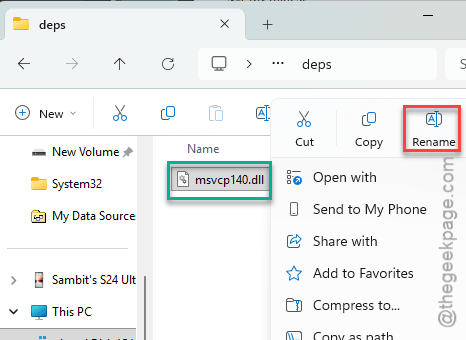
6 – Do the same for msvcp140_1.dll, msvcp140_2.dll, vcruntime140.dll and vcruntime140_1.dll, if they’re there.
7 – Open Premiere Pro, right-click your clip, and choose Edit Clip in Adobe Audition.
Rename, don’t delete. Audition falls back to the proper Windows copies of these files, and you can undo it in seconds if the Insta360 plugin acts up afterward.
Can’t see the .dll part of the names? Click View at the top of File Explorer, then Show > File name extensions.
Fix 2 – Find the Plugin That’s Causing It
Don’t have Insta360? Then some other plugin is doing the same thing. Windows logs the exact file that broke the launch, so you don’t have to guess.
1 – Right-click Start and open Event Viewer.
2 – In the left panel, expand Windows Logs and click Application.
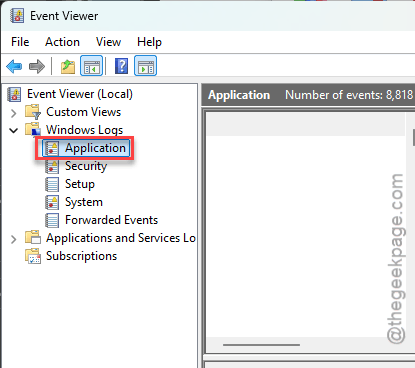
3 – Look for a red Error entry for Audition.exe with the code 0xc0000142, at about the time it crashed.
4 – Click it and read the details at the bottom. Look for the module path.
If that path points into a plugin folder under MediaCore, you’ve found the culprit. Go to that folder and rename its runtime files like in Fix 1.
Fix 3 – Move Third-Party Plugin Folders Out for a Test
Event Viewer not telling you much? Clear out the MediaCore folder and see.
1 – At first, close the Premiere Pro, Audition and other Adobe applications.
2 – Then, go this way –
C:\Program Files\Adobe\Common\Plug-ins\7.0\MediaCore
3 – Look for any suspected third-party plugin in there.
4 – Move that alleged plug-in out of that location and store it in a backup location of your choice.
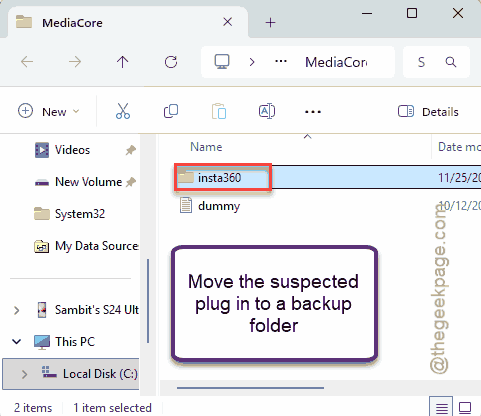
5 – Retart Premiere and test Edit clip in Audition feature.
If it works, move the folders back one at a time and test after each. The one that brings the crash back is your problem plugin. If the error still persists, you can reinstate the plug to the original location
Fix 4 – Repair the Visual C++ Redistributables
If the Windows copies of those runtime files are damaged too, Audition has nothing good to fall back on.
1 – Press Windows + I to open Settings.
2 – Click Apps, then Installed apps.
3 – Type Visual C++ in the search box at the top.
4 – Find Microsoft Visual C++ 2015-2022 Redistributable (x64), click the three dots (⋯) next to it, and choose Modify.

5 – Click Repair and wait for it to finish. It takes about a minute.
6 – Do the same for the (x86) version.
7 – Restart your PC.
Reparing Visual C++ Redistributables may help if the installed runtime is damaged.
Fix 5 – Manually load the Rendered Audio in Audition
This is an workaround that may come in emergency. If you need to conitnue editing immediately, you can manually render the audio clip in Premiere and load it up in Audition.
1 – Select the affected audio clip in Premiere Pro.
2 – Then, go to the Clip > Render and Replace.
3 – Locate the rendered audio file using the Reveral in Explorer.
4 – Load up the rendered audio file in Adobe Audition.
5 – Now, you can edit the audio and save the changes.
Check if this helps.
Keep It From Coming Back
- Keep Premiere Pro, Audition and third-party plugins updated.
- If the problem returns after upgrading a plugin, take a look at the Event Viewer.
- Do not delete DLL files from Windows system directories or Adobe installation folders.
People Also Ask
What does error 0xc0000142 mean in Adobe Audition?
This error actually indicates a DLL initialization failure. Sometimes, conflicting runtime DLLs from third-party plugins that may have caused the error.
Can I edit Premiere audio in Audition without using Edit Clip in Audition?
Yes, you absolutely can. Render and replace the audio clip in Premiere, locate the resulting audio file and load it up manually in Audition.