Microsoft adds a recovery feature to Windows 11, and then it goes missing from the one screen where you’d need it. You open the recovery menu, click Troubleshoot, and Point-in-time restore isn’t in the list. You don’t have to wipe the PC to get it back. If the feature is supported and enabled but missing from Windows Recovery Environment, repairing Windows system may help you resolve the issue.
Where This Comes From
Point-in-time restore is a Windows recovery feature that allows users to roll their PC back to a recent system snapshot, including apps, settings and your personal files. If you can’t find this option in Windows Recovery Environment, there is a chance that it is disabled. However, it is also possible that the required Windows updates or your workplace policy may affect the availability.
Knowledge Panel –
Microsoft introduced the Point-in-time restore feature for Windows 11 through updates beginning in June 2026, with a gradual rollout.
If the option is missing from Windows Recovery Environment (WinRE), it may be disabled, unavailable due to organizational policies, or not yet enabled on the device.
Check Settings > System > Recovery > Point-in-time restore and install the latest applicable Windows updates.
If your system is eligible, follow these fixes.
Fix 1 – Check Windows Version and Update
Before you commit any changes, you should check for the current status of your Windows system.
1 – At first, press the Win+R buttons at once.
2 – Then, input this in the Run box, and click OK.
winver
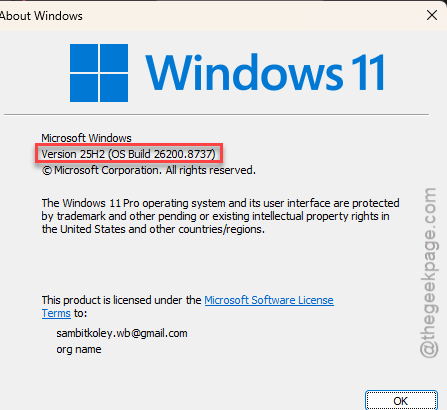
You can check and confirm the Windows 11 version and build from there.
1 – Thereafter, load the Windows Update in the Windows Settings console to install the pending updates.
2 – Do not forget to restart the system.
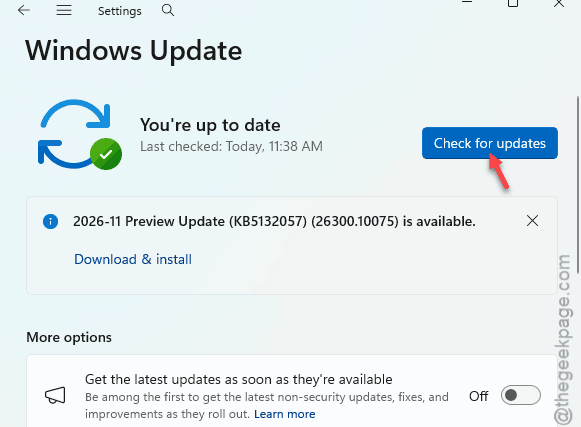
Now, you can check the feature once again.
Fix 2 – Check if Point-In-Time Restore Is Disabled
Another basic check is to look whether the Point-In-Time Restore function is actually disabled on your machine.
1 – Start by pressing the Win+I buttons at once. Once it opens up, go this way –
System > Recovery
2 – Now, look for the Point-in-time restore function and choose it.
3 – If it show up there, tap View or Edit.
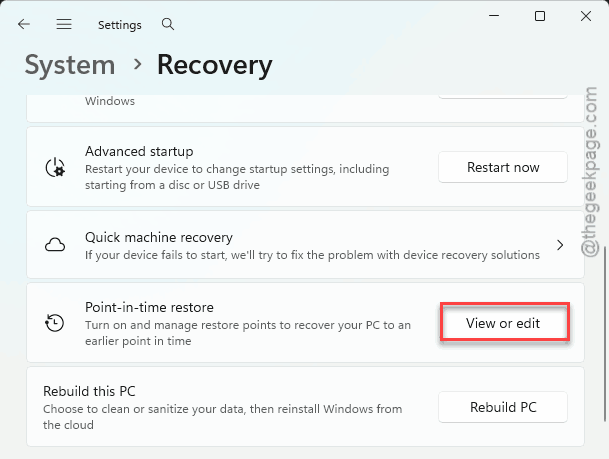
4 – If the feature is disabled, you can enable it from there.

5 – Now, return to the Windows Recovery settings.
Check if you can find that feature in Windows RE.
There is another chance that your IT administrator has disabled it on your device, which can be a part of your company policy. You should contact the IT administrartor before you commit these changes in Windows RE.
Fix 2 – Repair Windows With “Fix Problems Using Windows Update”
This reinstalls your current version of Windows over itself. Your files, apps and settings stay where they are. It does take a while, so plug in the charger and make sure the internet connection is steady before you start.
1 – Sign in with an administrator account.
2 – Press Windows + I to open Settings.
3 – Click System in the left sidebar, then click Recovery on the right.
4 – Find Fix problems using Windows Update and click Reinstall now.
5 – Decide whether to tick the box that lets your PC restart by itself 15 minutes after the install finishes.
6 – Click OK.
7 – Wait while Windows Update downloads and installs the repair version.
You can keep using the PC during this part. Progress shows on the Windows Update page, and it’s a full copy of Windows coming down, so on a slow connection it can run past an hour.
8 – Click Restart now when Windows asks. If you ticked the box in step 5, it restarts on its own.
The PC shows an “installing” screen and may restart more than once. Leave it alone until you’re back at the sign-in screen.
Fix 3 – Check WinRE for the Option
Save anything you have open first, because this restarts the PC into the recovery menu.
1 – Open Settings and go to System, then Recovery.
2 – Click Restart now next to Advanced startup.
3 – Click Troubleshoot on the blue screen that appears.
Point-in-time restore should now be in the list. To get back to your desktop without changing anything, click the back arrow and choose Continue.
Do this check again after big Windows updates. It takes a minute, and it’s better to find out the option is missing on a normal day than on the day you need it.
People Also Ask
What is point-in-time restore in Windows 11?
It’s a recovery tool that returns your PC to the state it was in at an earlier moment, which helps after a bad update or driver. You start it from the Windows Recovery Environment, under Troubleshoot. If it’s missing there, a repair install through Windows Update brings it back.
How Point-In-Time Restore differs from regular System Restore?
Unlike the traditional System Restore, which does restore your system to a previous saved point, Point-in-time restart can revert your personal files, applications, settings and passwords to their previous state.
How do I open WinRE in Windows 11?
Open Settings, go to System, then Recovery, and click Restart now next to Advanced startup. Your PC restarts into a blue menu, which is WinRE. A faster way is to hold Shift while you click Restart in the Start menu’s power options.