Does Windows repeatedly display a “dwm.exe has stopped working” error? You also may notice your device screen flickering, briefly turning black, or sometimes the applications unexpectedly closing. Desktop Window Manager or dwm.exe runs on your graphics card. It can sometimes crash the graphics processes, which can be directly assoicated with the GPU drivers. Try these troubleshooting methods to identify the cause and restore your device functionality.
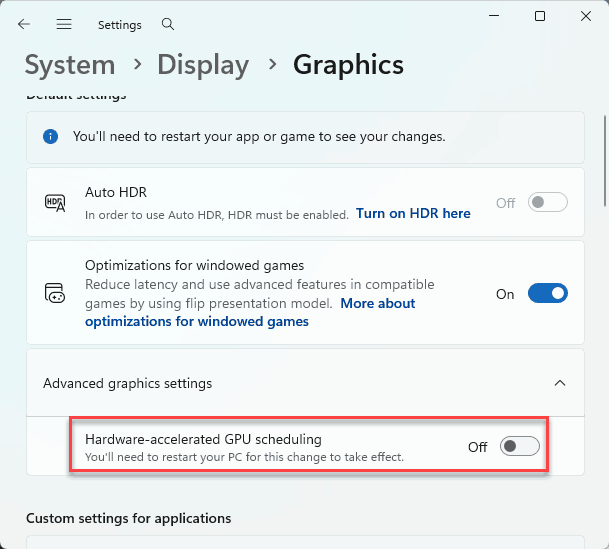
Fix 1 – Turn off Hardware-Accelerated GPU Scheduling
Try disabling the hardware-acclerated GPU scheduling feature in Windows Settings.
1 – Press Windows + I to open Settings.
2 – Click System, then Display.
3 – Scroll down and click Graphics.
4 – Click Advanced graphics settings. On Windows 11 23H2 and older, and on Windows 10, it’s called Change default graphics settings.
5 – Switch Hardware-accelerated GPU scheduling to Off.
6 – Restart your PC.
Use the PC the way you normally do and see if the crash returns. Check if this works.
NOTE – If Hardware-acclerated GPU scheduling is unavailable, your graphics card or installed driver may not support the feature. Skip this solution, if that is the case.
Fix 2 – Go Back to an Older Driver
Did the crashes start right after a driver update? Then the newest version may be the problem, and a clean install of it won’t help.
1 – Open Device Manager.
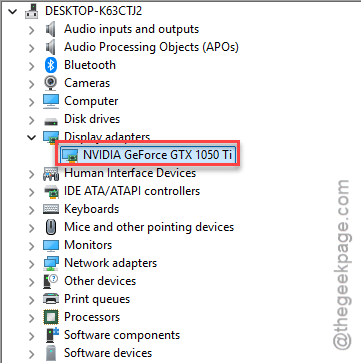
2 – Expand the Display adapters tab. Now, double-tap the affected GPU device.
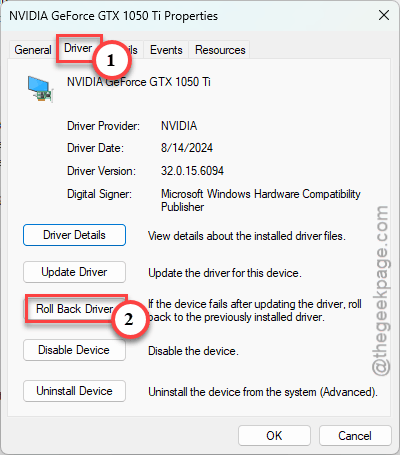
3 – Go to the Drivers tab and choose to Rollback Driver.

4 – Simply follow the on-screen steps to roll back the driver.
Otherwise, you can also follow this approach, without using Device Manager:
Download a previous version you know was stable from the NVIDIA, AMD or Intel site, then repeat Fix 2 with that file. Stay on it until a newer release comes out.
Fix 3 – Clean-Install the Graphics Driver
A normal driver update installs over the old files. A clean install removes everything first, which is what you want when the driver itself is damaged. The tool for that is Display Driver Uninstaller (DDU), a free program.
NOTE – Make sure you know the Windows password as you will need it accessing the Safe Mode.
1 – Download the latest driver for your card from the NVIDIA, AMD or Intel website. Save it, but don’t run it yet.
2 – Download DDU and extract it to a folder you can find again.
3 – Open the Start menu, click the Power button, then hold Shift and click Restart.
4 – On the blue screen, click Troubleshoot, then Advanced options, then Startup Settings, then Restart.
5 – Press 4 when the list appears. Windows starts in Safe Mode, with a black desktop and large icons.
6 – Run DDU, pick your card’s brand, and click Clean and restart.
7 – Back in normal Windows, run the driver installer you saved in step 1.
8 – Restart your PC once the installer finishes.
Your screen looks low-resolution between steps 6 and 7. That’s expected, and it clears up when the new driver goes in.
From here on, get drivers straight from the card maker’s site and skip the ones Windows Update offers. Those tend to be older.
Fix 4 – Update Your Xbox Controller’s Firmware
This one only applies if you play with an Xbox controller. It looks unrelated, but it’s a reported fix, and it takes about five minutes.
1 – Open the Microsoft Store, search for Xbox Accessories, and install the app.
2 – Connect the controller to your PC with a USB cable. Don’t use Bluetooth or the wireless adapter for this.
3 – Open Start, type Xbox Accessories, and open the app.
4 – Select your controller and click the three dots (…).
5 – Click Update now if an update is offered.
Leave the cable plugged in until the update finishes. No Update now button means the firmware is already current.
Additional Fix –
If you are still facing the dwm-induced crashing, do this –
1 – Open Event Viewer.
2 – Then, proceed this way, following this path –
Windows Logs > Application
3 – Check whether you can find the dwm.exe as the faulting application there.
This way, you can narrow down the cause of the issue.
People Also Ask
How can I fix the DWM crash issue on Windows 11?
Start by turning off Hardware-accelerated GPU scheduling in Settings under System, Display, Graphics, then restart. If dwm.exe still crashes, remove your graphics driver with Display Driver Uninstaller in Safe Mode and install a fresh copy from NVIDIA, AMD or Intel. An older, stable driver version is worth trying too.
What causes dwm.exe to crash?
Desktop Window Manager runs on your graphics card, so most crashes trace back to the graphics driver. A damaged install or a buggy new driver version are the usual causes. Hardware-accelerated GPU scheduling can trigger it as well, and so can outdated Xbox controller firmware in some cases.
How do I restart Desktop Windows Manager in Windows 11?
Desktop Window Manager is a Windows system process that normally restarts automatically after an unexpected failure.