Does mouse keep travelling to the second monitor while you are playing the game on your first screen? Users have reported this problem, where the game is automatically minimized when the user clicks on the screen, Games that require mouse capture shuld normally keep the cursor inside the game window during gamplay,
What’s Actually Going On
Players on Windows 11 24H2 and 25H2 with two or more monitors have been reporting this through 2025 and 2026. It shows up most when the game displays its own cursor, like in an inventory, a pause screen or a buy menu. That’s the moment the pointer can wander off to the other display.
A few things break the lock. An overlay (a small window that sits on top of your game, like Game Bar or Discord’s) can grab focus away from the game. Borderless window modes don’t hold the cursor as tightly as true fullscreen does. And sometimes Windows has stale mouse or monitor settings saved.
Some games also ship their own version of this bug. Minecraft Bedrock 1.21.121 lost cursor lock on multi-monitor PCs, and players say 1.21.122 fixed it. League of Legends can fail to lock the cursor if you alt-tab while a match is loading. So if only one game does it, check for a game update first.
Fix 1 – Switch the Game to Exclusive Fullscreen
Open your game’s video or graphics settings and find the display mode option. If it says Windowed or Borderless Windowed, change it to Fullscreen (some games call it Exclusive Fullscreen).
Now push the mouse hard toward the edge of the screen. It should turn the camera or move your aim, and it shouldn’t leave the game.
Fix 2 – Turn Off Overlays and Pop-Ups
Overlays are handy, but each one is another window that can steal focus from your game.
Turn off the ones you have running, such as the Discord overlay, the Steam overlay, Xbox Game Bar and your graphics card’s overlay.
Pause notifications too, along with any background app that likes to pop up over what you’re doing. Then play for a few minutes with lots of fast camera movement and see if the cursor stays put.
Fix 3 – Repair or Reset Game Bar
Game Bar is built into Windows, so it can cause trouble even if you never open it. Resetting it clears its saved data and takes about a minute.
1 – Press Windows + I to open Settings.
2 – Click System in the left sidebar.
3 – Click System components.
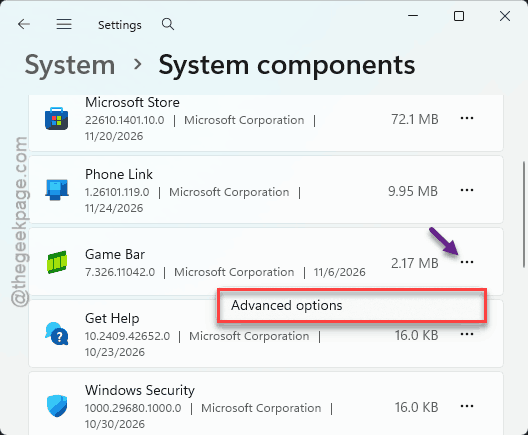
4 – Find Game Bar in the list and click the three dots (⋯) next to it.
5 – Click Advanced options.
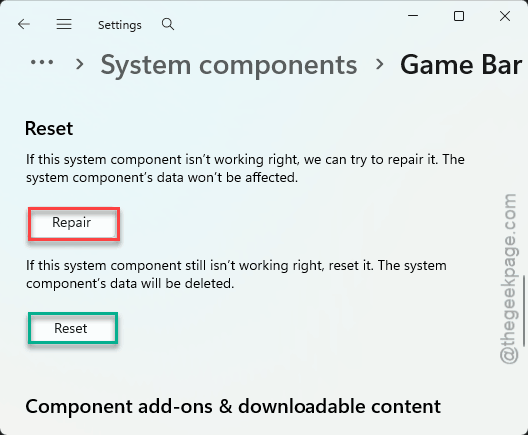
6 – Scroll down to the Reset section and click Repair, first. Then, try to Reset it.
7 – Restart your PC and open your game in fullscreen.
Does the problem come back after you open Game Bar or use its Xbox Social widget? Then close Game Bar from Task Manager (press Ctrl + Shift + Esc to open it), or restart your PC.
Fix 4 – Re-engage Your Affected Monitor
Some users in the community has solved the issue by removing monitors from Device Manager.
1 – Open Device Manager like in Fix 4.
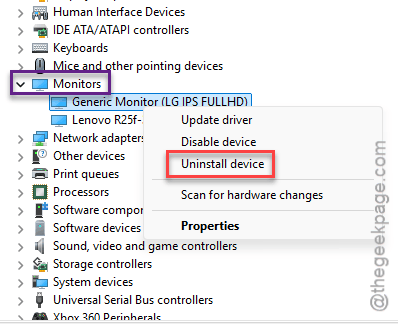
2 – Double-click Monitors to expand it.
3 – Right-click the affected monitor and click Uninstall device.
4 – Restart your PC.
Your display behavior may change temporarily for a few seconds. Although, you may need to re-configure the monitor’s display settings manually.
Fix 5 – Lock the Cursor Yourself With Dual Monitor Tools
If Windows won’t keep the cursor in place, a free app called Dual Monitor Tools (DMT) can do it with a hotkey.
1 – Download Dual Monitor Tools and install it.

2 – Open the app and click Options.
3 – Expand Cursor and click Sticky.
4 – Find Lock cursor onto screen and click Change.
5 – Tick Enable this Hotkey and pick a key combination, such as Shift + Backspace.
6 – Click OK.
7 – Start your game and press your hotkey to lock the cursor to that monitor.
Press the hotkey again whenever you want to reach the other screen. It’s a workaround, though, and some anti-cheat systems stop DMT from locking the cursor in certain games.
Avoiding This Next Time
- Pick Fullscreen over borderless modes in games where the cursor matters, like shooters and strategy games.
- Only run the overlays you really use. Fewer windows on top of the game means fewer chances for one to take focus.
- Try not to alt-tab while a game is still loading. That’s a known way to lose the lock in League of Legends.
- Keep your games updated, since some of these bugs get patched by the developer.
Quick Answers
Why does my mouse go to my second monitor while gaming?
The game has lost its lock on the cursor. That usually happens in borderless or windowed mode, or when an overlay like Game Bar or Discord takes focus for a moment. Switch the game to exclusive fullscreen first, then turn off overlays one at a time.
How do I lock my mouse to one monitor in Windows 11?
Windows 11 has no built-in switch for this. Games lock the cursor themselves when they run in fullscreen. For everything else, a free app called Dual Monitor Tools lets you set a hotkey that pins the cursor to one screen until you press it again.
Will resetting Game Bar delete my game clips?
No. Resetting Game Bar clears the app’s own data and settings, like widget layouts and preferences. Your recorded clips and screenshots are regular files in your Videos folder under Captures, and the reset leaves them alone. You might need to set your Game Bar preferences again afterward.
Is it safe to uninstall monitors in Device Manager?
Windows does detect connected monitor again after a restart. However, deleting the monitor entries may temporarily affect the display configuration.