Does the Snapchat app not sending you the verification code while logging to your Snapchat app? If you have forgotten the password, Snapchat sends a verification code to the registered email ID or phone number to verify your access. But, if you are not getting the code from Snapchat, you won’t be able to reset the account password, ultimately denying your access.
Fix 1 – Get the code via Email
The most basic alternative that you can choose beside getting the code texted to your Snapchat number is to get it to the email ID.
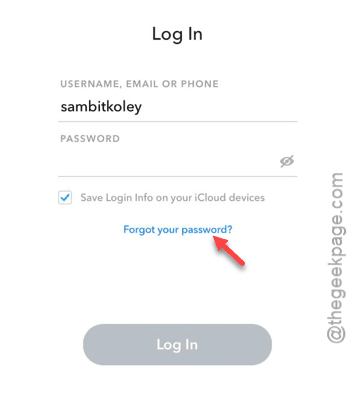
Step 1 – Tap the “Forgot Password?” option in the Snapchat log in page.
Step 2 – Use the “via Email” option to get the code delivered to your email account.
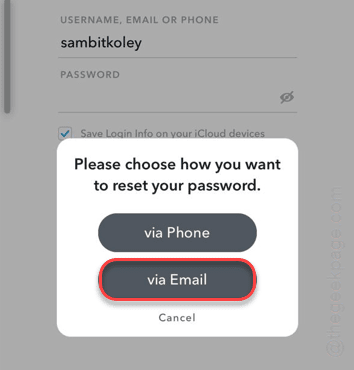
You will get the code sent to your email ID registered to your Snapchat account. Input the code from the email ID, you can reset your Snapchat password.
Check if this works.
Fix 2 – Contact the Snapchat support
You can get the help from the Snapchat support.
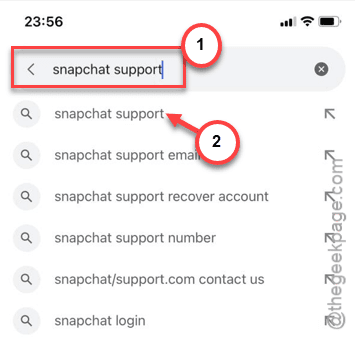
Step 1 – Open up a browser of your choice and google Snapchat support.
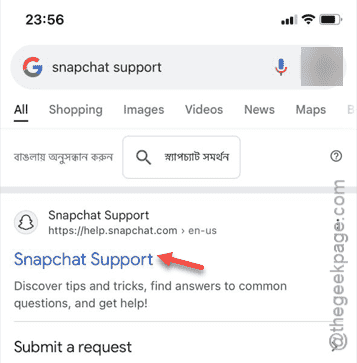
Step 2 – Later, tap the Snapchat Support to go there.
Step 3 – Tap the “Snapchat Support” in the search result to open it up.
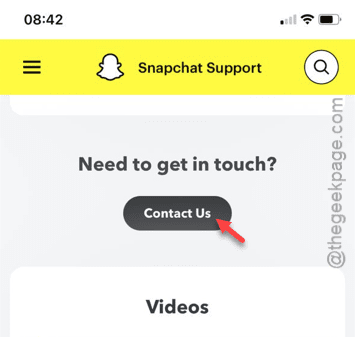
Step 4 – On the Snapchat Support page, scroll down and tap the “Contact Us” option.
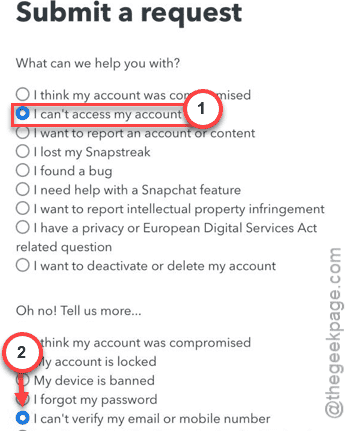
Step 5 – On the Submit a Request page, choose the “I can’t access my account” option.
Step 6 – A secondary menu should pop up. So, choose the “I can’t verify my email or mobile number” feature.
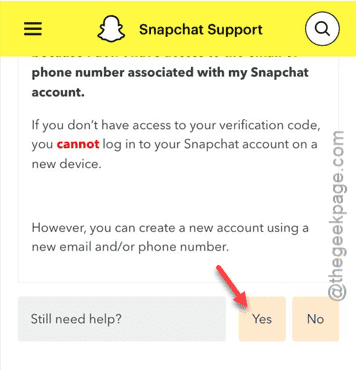
Step 7 – When you see the ‘Still need help?’ tab, tap the “Yes” option.
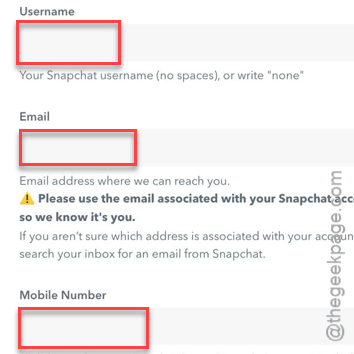
Now, you will see the ‘Username‘, ‘Email‘, ‘Mobile Number‘ or ‘Description‘ tab.
Step 8 – Fill out the information there properly.
Step 9 – After this, tap the “Submit” button.
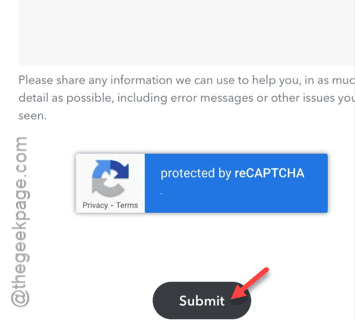
Once you have submitted the request, you will get the requested support from the Snapchat Support team.
Fix 3 – Make sure the iMessage is working
The iMessage function needs to work properly for the Snapchat app to work properly.
Step 1 – Go straight to the Settings page.
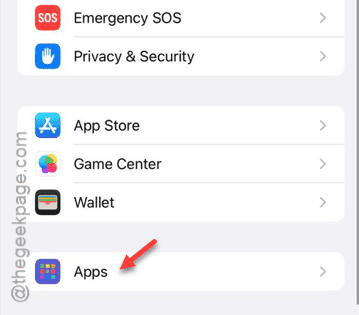
Step 2 – There, you need to go to the “Apps” section of the window.
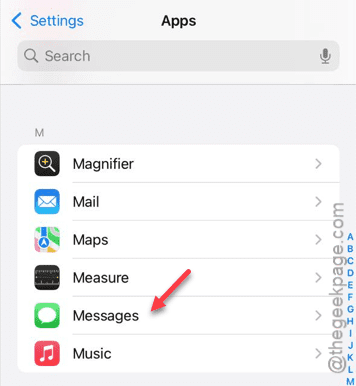
Step 3 – Find the “Messages” app. You have to open it up.
Step 4 – Look for the “iMessage” option there. If the option is turned off, you must turn it on.
Step 5 – But, what if it is enabled already? Then, turn it off.
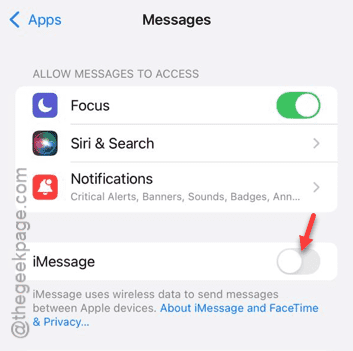
Step 6 – Then, switch it back to On mode.
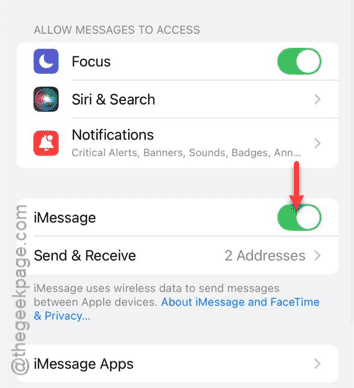
While the iMessage is enabled, you will get the password reset code on your iPhone.
Use the code and you can change the Snapchat password. Test if this works.