Can’t share your location as the “Share My location” is disabled on your iPhone? You can’t share your location if it is disabled. But, apart from that, there are some other features or settings that you need enabled to share your location successfully. We have discussed the solution to address this problem. You can enact the solution on your own and get it fixed.
Why I can’t share my location from my iPhone?
Your current location is a delicate private information. So, when you try to share that information from your iPhone, there are some prerequisites that you need to fulfil. You need to enable the Find My settings to be able to share your current location with others. If the Find My settings is disabled on your iPhone, you can’t share your location with others. Apart from this, you need the location services settings to be turned on to transmit your location with your contacts.
Even if you have shared the location, if all the Find My parameters are not enabled, there can be problems sharing location with others. So, we recommend you follow the specified path to solve the issue.
Fix 1 – Enable the Location sharing
You must turn on the Find My system on your iPhone.
Step 1 – You can begin by finding the ⚙ button. Tap this, and it will take you to the iPhone Settings.

Step 2 – After going there, find out the Apple ID there. Open it up.

Step 3 – Next, after opening up the Apple ID settings, open the “Find My” settings.

This controls your location sharing capabilities.
Step 4 – Now, you must turn on the “Share my location” option there.

After enabling the location settings, you can now go ahead and share the location with the particular contact from the Contacts app.
Fix 2 – Turn on the Location Services
You must turn on the Location Services so that you can share the current location with others.
Step 1 – At first, we need to go to the Settings page.
Step 2 – Next, go to the “Privacy & Security” settings.
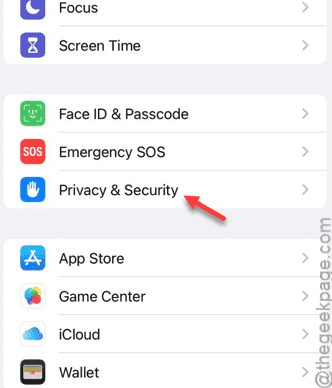
Step 3 – You may find the “Location Services” right at the top. So, open it up.
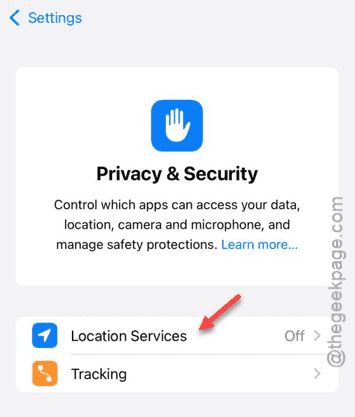
Step 4 – Next, turn on the “Location Services” option.
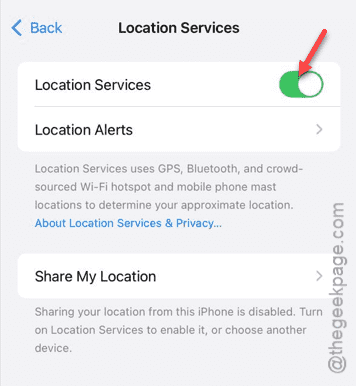
After turning on the location services, you have to enable the ‘Find My’ settings. Only then, you may share the location of your phone.
See whether this helps or not.