Is the Location services or GPS not functioning properly on your iPhone? If the location service is giving you trouble showing you the correct position, no need to worry. There are certainly some steps that you can to restore the location settings on your iPhone. Starting from the most basic solution, like enabling the location services, to more serious solutions like the location services access to mapping apps, we have covered all the possible solutions.
Fix 1 – Enable the location services
Just take a look at the Location services on your iPhone. So, you should enable that service.
Step 1 – Start the process by reaching the Settings page.
Step 2 – Next, open up the “Privacy & Security” panel there.
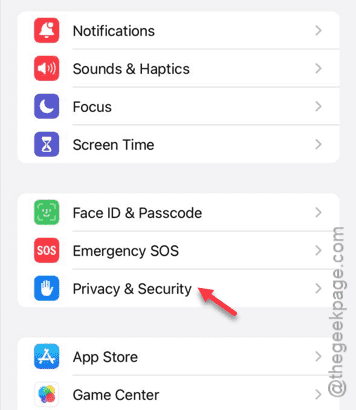
Step 3 – On the Privacy & Security page, open the “Location Services” option.
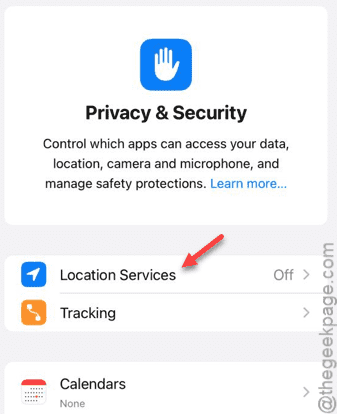
Step 4 – If it is turned off, enable that immediately.

After you have turned it on, see whether the issue have fixed or not.
Go for the next solution, if this one doesn’t work out.
Fix 2 – Change the app permissions
If the application in question doesn’t have proper app permission, this problem can originate.
Step 1 – So, we have to open the Settings page, first.
Step 2 – Then, go to the same “Privacy & Security” feature section.
Step 3 – Go to the “Location Services” panel once more.
Step 4 – Try to locate the problematic application in the list under the ‘Location Services’ panel.
Step 5 – You can directly see the current status of the app permission from there.
Step 6 – If it reads “Never” or anything else, open it up.
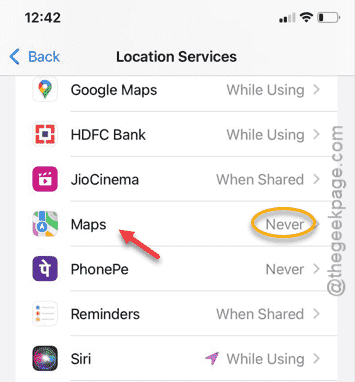
Step 7 – Tap the “While using the App” option or, if the app has an active widget that needs location access, you have to select the “While Using the App or Widgets” option.
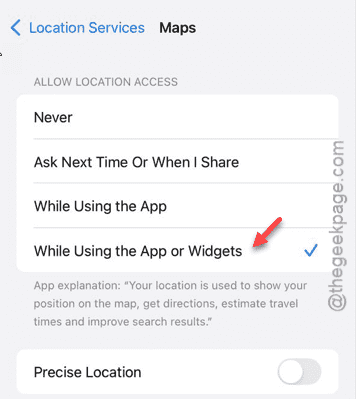
Once it is enabled, you can use the apps properly.
Fix 3 – Enable all the system services options
You have to enable all the system services option on your iPhone settings.
Step 1 – To do this, go straight to the Settings tab.
Step 2 – Next, open up the “Privacy & Security” options.
Step 3 – Then, go to the “Location Services” feature.
Step 4 – Now, scroll down to the bottom of the Location Services page and open up the “System Services” category.
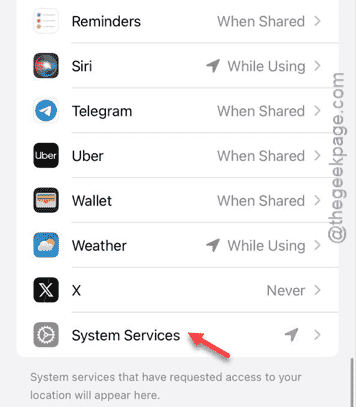
This page enlists all the system services you have got on your iPhone.
Step 5 – Make sure to go through all of them and if you see any of the services disabled, turn it on.
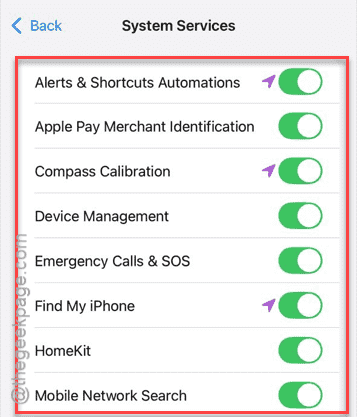
Once you are done, see the status of the location services on the iPhone.
Fix 4 – Disable the Content Restrictions module
There is a Content Restriction module on your iPhone that can limit the access to the location data.
Step 1 – So, to do this, hit the ⚙ icon to open up the Settings page.
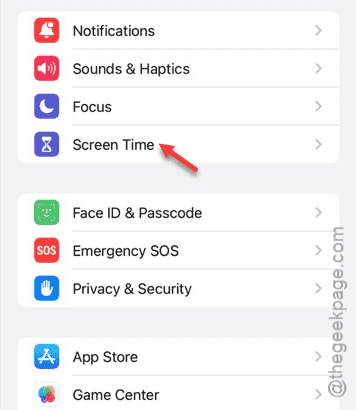
Step 2 – Next, load up the “Screen Time” settings.
Step 3 – Go to the “Content Privacy & Restrictions” settings.
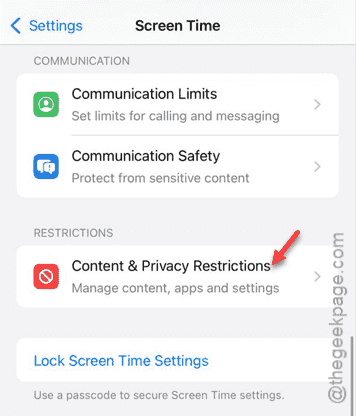
Step 4 – Disable the “Content Privacy & Restrictions” system.
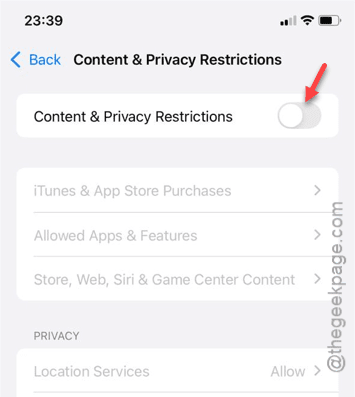
Check if the issue still persists.
Fix 5 – Turn on the Background App Refresh
If the problematic app is trying to access the location data in the background and facing this problem, background app refresh might be disabled.
Step 1 – In your iPhone Settings, go to the “General” tab.
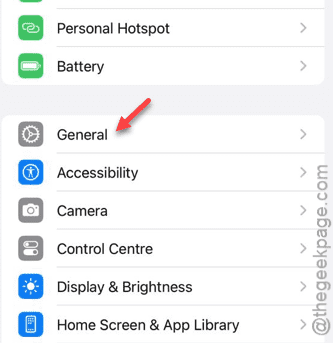
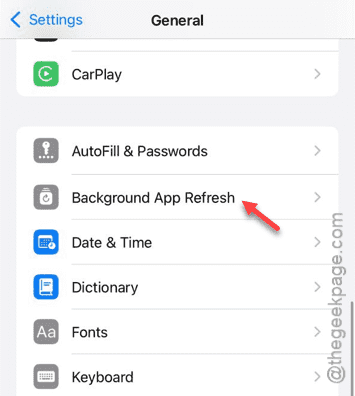
Step 2 – Go to the “Background App Refresh” module.
Step 3 – Find the app that is having problem accessing the location data in the background.
Step 4 – Make sure it is enabled in there.
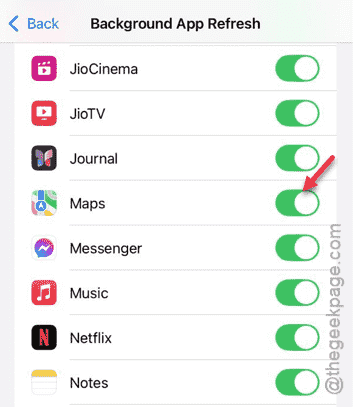
This way, iPhone won’t put any restraints on the background activity of the said app.
Fix 6 – Update the problematic app
Check whether the app has an impending update that you have overlooked.
Step 1 – You have to open up the App Store for this.
Step 2 – Next, search for the app.
Step 3 – For an impending update of the app, tap “Update“.
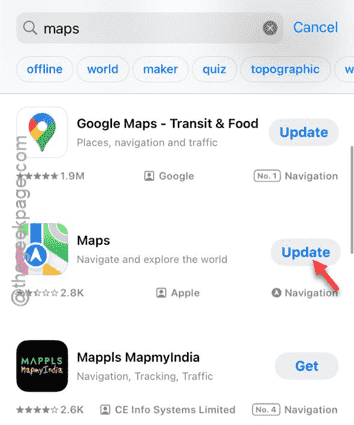
Once you have updated the app, the issue with the location should be gone.
Hope these tricks have helped you fix the issue.