Does the WhatsApp icon have disappeared from the Home Screen of your iPhone? If the WhatsApp icon is missing from the Home Screen, the first problem you are going to face is the inconvenience. Every time when you are in the need of loading up the WhatsApp app, you have to start a search for the app. So, these steps will be helpful in detecting the issue and fix that.
Fix 1 – Unhide the Home Screen page
There is a chance that the Home Screen page where the WhatsApp icon is present is hidden. In that case, making that page visible should recall the icon to its place.
Step 1 – Unlock the iPhone and hold the iPhone Home Screen page.
Step 2 – Thereafter, you will see the customization menu has opened up.
Step 3 – Tap the dot button representing the screen pages.
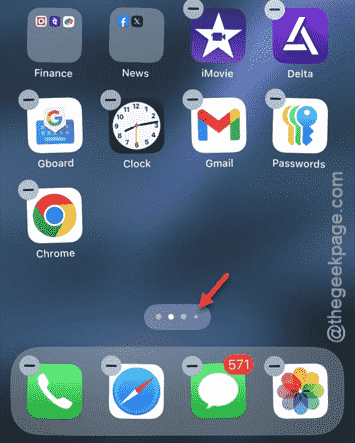
You will now get a comprehensive view of the screen pages.
Step 4 – Check whether you can find any page that has the WhatsApp icon in there.
Step 5 – Just tap the “✔” button below that page and click “Done” to save it.
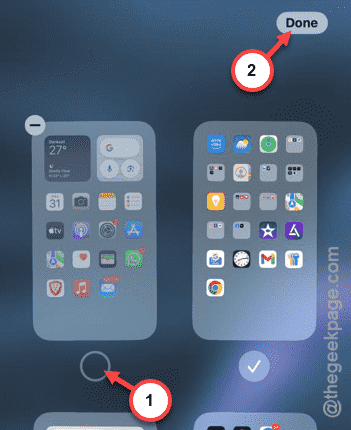
Now, you will see the WhatsApp icon on one of the home screen pages. You can directly access the WhatsApp from there.
Fix 2 – Reset the Home Screen Layout
If the first solution doesn’t work out, you can reset the Home Screen Layout completely.
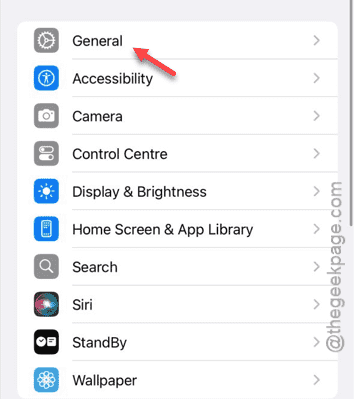
Step 1 – The only way you can do this is to open the Settings page.
Step 2 – Next, load up the “General” options there.
Step 3 – After getting into the General tab, open up the “Transfer or reset iPhone” option.
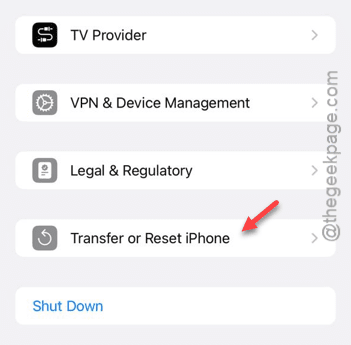
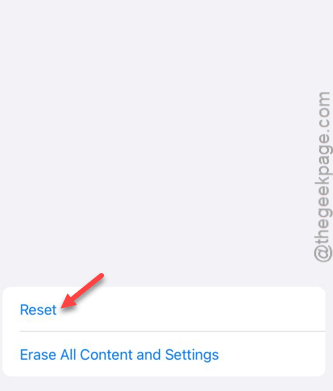
Step 4 – Next, you have to touch the “Reset” button there.
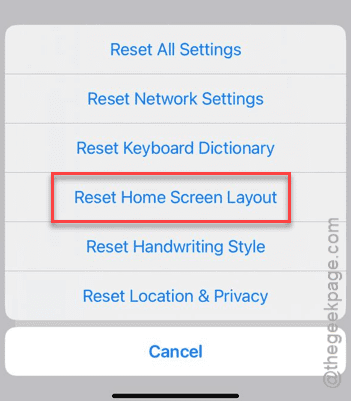
Step 5 – This time, you must select the “Reset Home Screen Layout” feature.
You must provide the 6-digit Apple Passkey to proceed with the resetting process.
Resetting the Home Layout means all the items on the Home Screen will be reset to their default state. In other words, all the items will appear exactly at the same position where they were when you have first rebooted the device.
This should restore the WhatsApp to its correct place.
Fix 3 – Push the WhatsApp icon from App Library
You may have deleted the WhatsApp icon from the Home Screen page. In that case, you can still find it in the App Library page.
There are many workarounds for this case –
Workaround 1 –
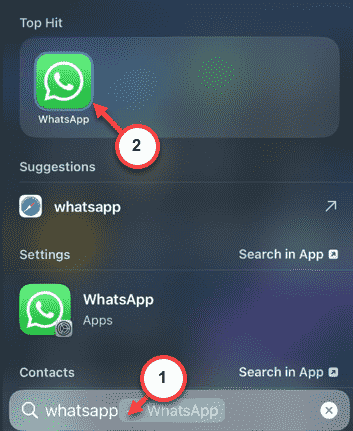
Step 1 – Open the Apple Spotlight. Do that either by tapping the “Search” option or, dragging your finger downwards in the Home Page.
Step 2 – Just search for “WhatsApp” and open it up.
Workaround 2 –
Step 1 – You can open the App Library.
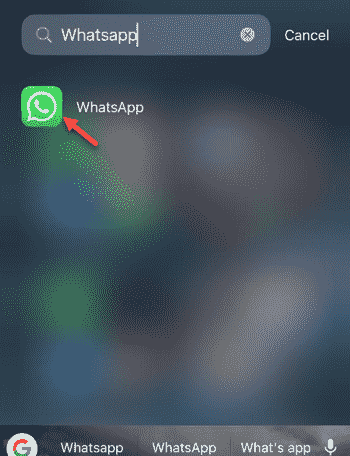
Step 2 – So, type “WhatsApp” in there to look for it.
Step 3 – Once you have found it, drag “WhatsApp” from there and put that back to the Home Screen.
You can also drag it back to the place where it belonged in the first place. You can now use the WhatsApp once more.