Does the Snapchat app sound is not working on your iPhone? If the Snapchat app is not giving out any sound or alert, this article is just for you. Start from tweaking basic settings, like turning on the microphone. If that is not enough, try the more drastic steps like uninstalling and reinstalling the app.
Fix 1 – Enable the Microphone
You have to enable the Microphone feature for the Snapchat app.
Step 1 – At first, open up the Settings page.
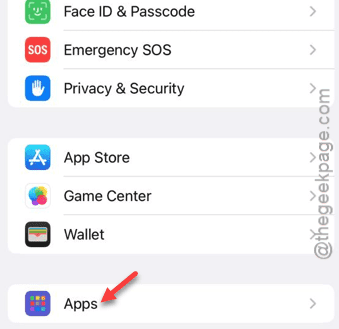
Step 2 – Next, get to the “Apps” tab.
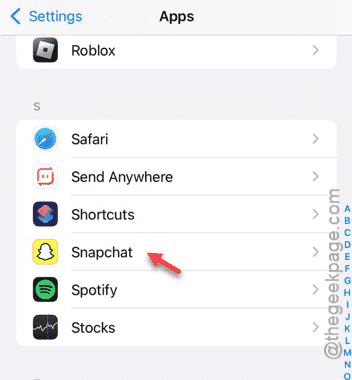
Step 3 – Quickly, find the “Snapchat” app from the list and open that up.
Step 4 – Enable the “Microphone” option in the app.
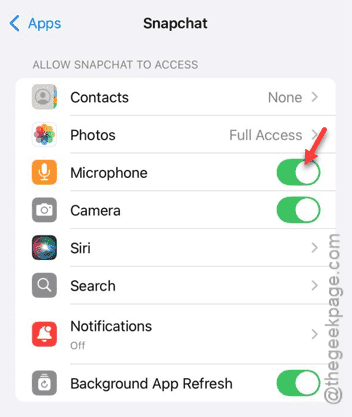
After you have enabled the microphone in the Snapchat app, see whether you can get the sound alert from it.
Fix 2 – Offload the Snapchat app and reinstall
Offloading the Snapchat app won’t delete the app data, but it will clear the app cache.
Step 1 – You may begin the process by going to the Settings page.
Step 2 – There, find the “General” tab and open that up.
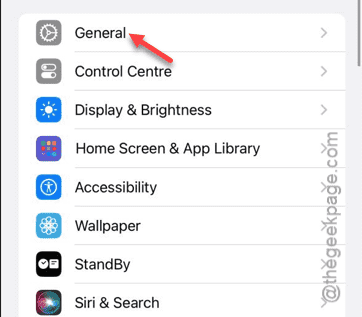
Step 3 – Open up the “iPhone Storage” function from the same page.
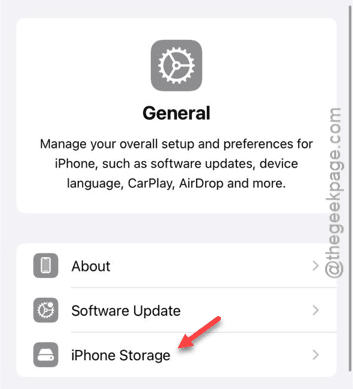
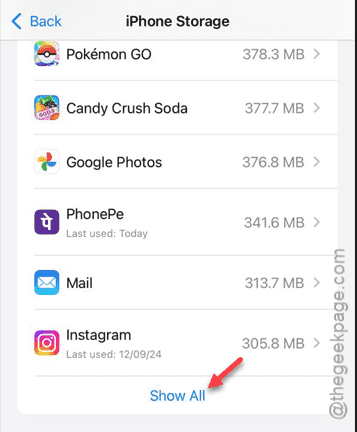
Step 4 – Scroll down and down through the list, in search of the Snapchat app.
Step 5 – If you can’t find it there, tap “Show All” option.
Step 6 – Whatever, after getting access to the Snapchat app, use the “Offload App” function.
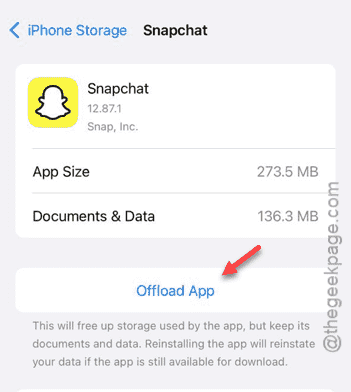
Now, you must wait for a minute or two.
Then, go back to the Settings page.
Step 7 – Go this way, once more –
General > iPhone Storage
Step 8 – In that iPhone Storage page, open up the “Snapchat” app.
Step 9 – Now, tap the “Reinstall App” to reinstall that app.
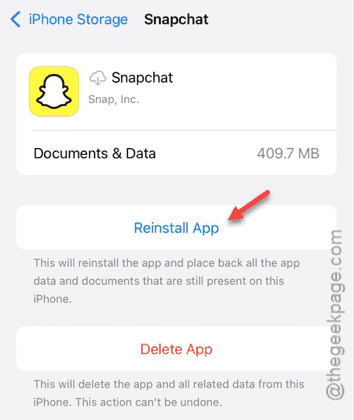
Check whether you are getting sound from the Snapchat app.
Fix 3 – Uninstall and reinstall Snapchat
If offloading the app doesn’t help, uninstall it completely and reinstall the same.
Step 1 – Find the Snapchat app on your iPhone.
Step 2 – If you can’t locate it there, find it from the App Library.
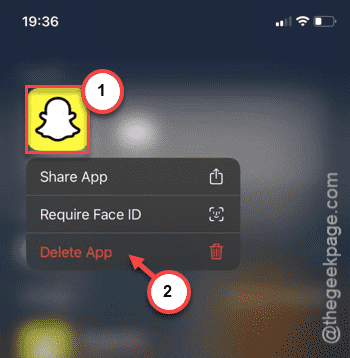
Step 3 – Now, hold the Snapchat app and click “Delete App“.
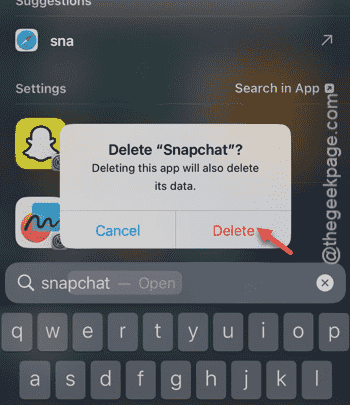
Step 4 – Tap the “Delete” option once more to delete the app.
Step 5 – This time, you have to go to the App Store.
Step 6 – You have to reinstall the Snapchat app.
Next, log in using your Snapchat credentials.
Step 7 – You must allow all the necessary permissions while you are setting up the Snapchat app.
You will get all the alerts from the app once again. Check if this works.