Can’t see the name of the caller on your iPhone? The name of the caller does not show up if the person’s credentials are not stored in the phone book. But, if the caller ID is not visible inspire of the number being present in the Contact’s list, it is a point of concern. It is impossible for you to remember all the numbers by heart so that you can tell who is dialing up, follow these steps to fix it.
Fix 1 – Turn on iCloud Contacts
You must enable the iCloud contacts option on your iPhone.
Step 1 – So, you have to go to the iPhone Settings.
Step 2 – Next, load up the “Apple ID” settings.
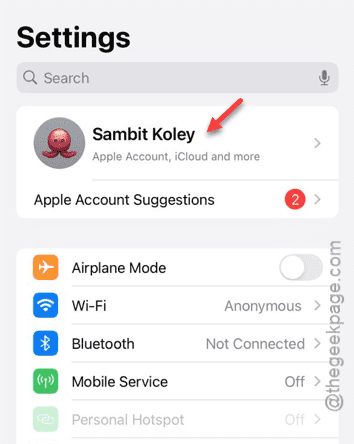
Step 3 – After getting to the Apple ID settings, touch the “iCloud” panel.
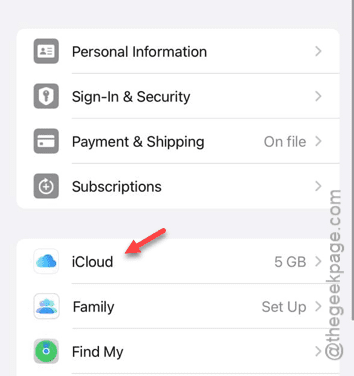
Step 4 – Tap the “See All” button.
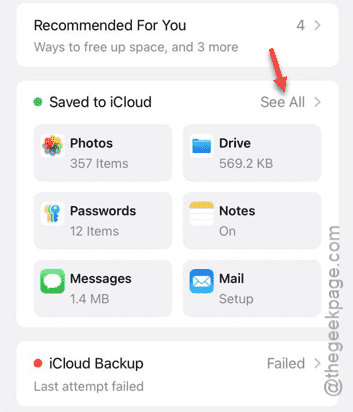
Step 5 – Next, find the “iCloud Contacts” or “Contacts” in the following page.
Step 6 – Disable that “Contacts” module from there.
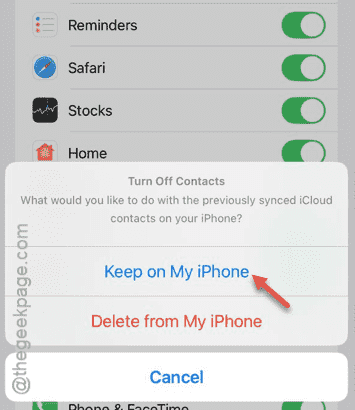
Step 7 – When you do this, a prompt should appear on the screen asking for your permission whether to keep or delete the contacts from the device.
Step 8 – So, tap the “Keep on my iPhone” option.
Step 9 – Later, re-enable the “Contacts” module.
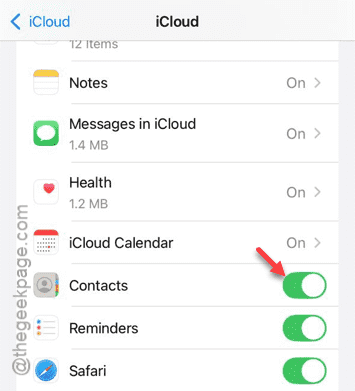
Once you have executed these steps, the dialer should show the name of the contacts from the contacts that it have synced from the iCloud list.
Fix 2 – Change the Short Name option
You have to make some changes in the Short Name option from the Contacts list on your iPhone.
Step 1 – Load up the Settings page in the iPhone.
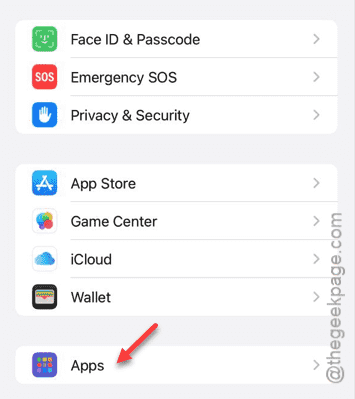
Step 2 – Next, open the “Apps” option there.
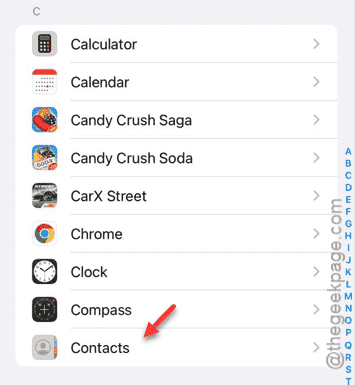
Step 3 – Scroll through the page a little bit and open up the “Contacts” option.
Step 4 – After opening the Contacts settings, open up the “Short Name” option.
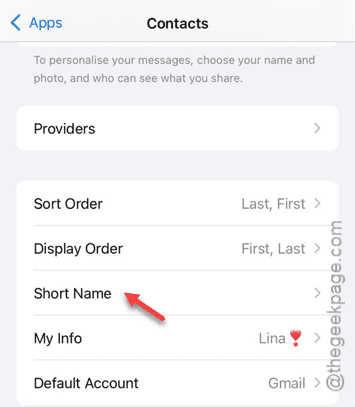
Step 5 – Set the “First Name Only” from the list.
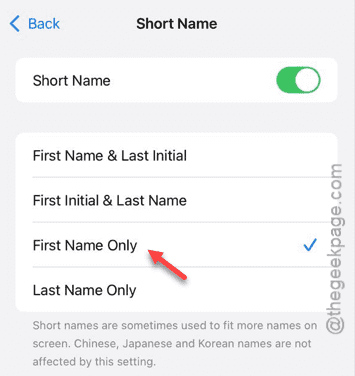
This way, the first name of the contact should show up when the person dials your number.
Fix 3 – Turn on the Dial Assist feature
You have to enable the Dial Assist feature from the iPhone Contact settings.
Step 1 – Go to the iPhone Settings and open up the “Apps” tab.
Step 2 – Later, go to the “Phone” app settings in that list.
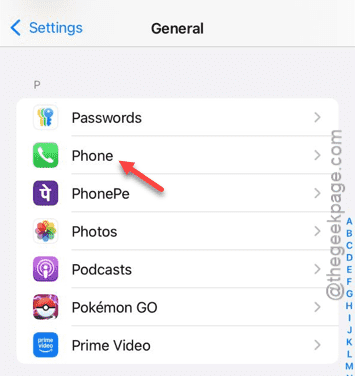
Step 3 – On the Phone app page, you have to find the “Dial Assist” feature and turn that on.
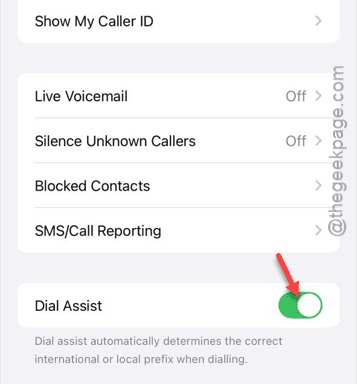
Once you have turned it on, the contacts names should show up properly, just like before.
Fix 4 – Sign out of the Apple ID
Sign out of the Apple ID from the iPhone, and sign in back to the device. This way, all the contacts will get synced into the device as well.
Step 1 – On your iPhone Settings page, open up the Apple ID settings.
Step 2 – Swipe down to the bottom and tap “Sign out” feature.
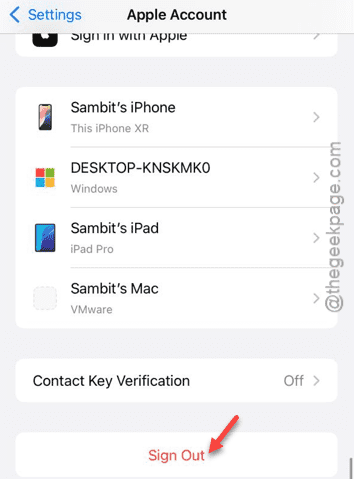
This process needs your approval, and you can provide that using the passcode. So, follow these steps and sign out of the Apple ID.
Step 3 – When the Apple ID is removed from your iPhone, the default Settings page should load up.
Step 4 – Next, use the “Sign in with Apple ID” option to initiate the signing in process.
Step 5 – Just put your Apple ID credential (your user ID and password) and sign in to your account.
Once you are done, the contacts should be restored on your iPhone. Check whether you can view the contact when someone known calls you.