Is the camera lagging while taking snaps on the Snapchat app? The main purpose of Snapchat app is to take the quick captures and share them over with your friends. So, if the camera itself is lagging, you will be feeling frustrated within a few bad snaps. Start from the basic solutions, and you shall find Snapchat app working properly in no time at all.
Fix 1 – Disable the Focus Mode
Some users have complained that the Focus Mode in Snapchat is creating this problem.
Step 1 – You may begin the process by opening the Snapchat app.
Step 2 – As usual, the camera interface should open up as the home page.
Step 3 – Tap the “➕” button on the right side of the Camera page to open all the camera instruments.
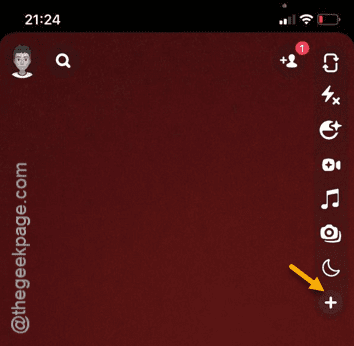
Step 4 – If the Focus mode is enabled, it will show up in there.
Step 5 – In that case, disable the Focus mode in there.
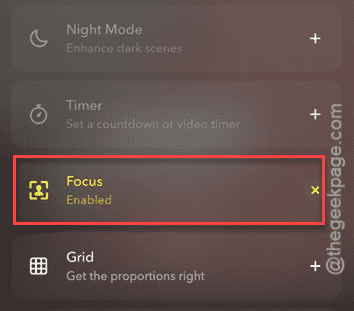
Once you have disabled the Focus mode, check the camera in the Snapchat.
Look whether if the camera is working correctly on the Snapchat or not.
Fix 2 – Clean up Snapchat cache
If the camera is still lagging, try emptying the cache on your device.
Step 1 – You have to launch the Snapchat to do this. So, launch the app.
Step 2 – Once it has opened up, tap your Bitmoji avatar to load your Snapchat profile.
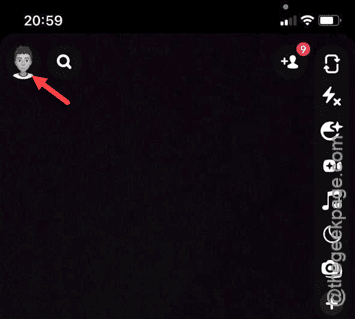
Step 3 – There, tap the “⚙” button to access the Snapchat settings on your iPhone.

Step 4 – On that page, if you go up, you will see the Privacy Control tools.
Step 5 – In there, tap the “Clear Data” option.
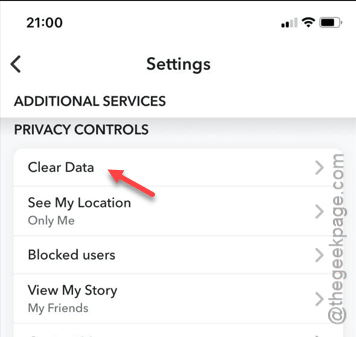
Step 6 – Next, tap the “Clear Cache” option.

Step 7 – Finally, tap the “Clear” option there to empty the Snapchat cache.
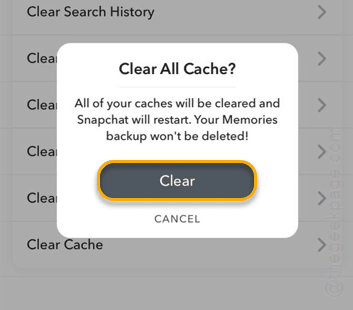
Clearing the cache should be helpful sorting out this problem with the unresponsive camera on the Snapchat app.
Fix 3 – Free up enough space
The lack of enough space in Snapchat can cause this type of disturbance.
Step 1 – To check the iPhone’s storage, open up the Settings page.
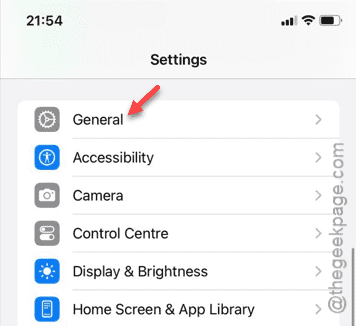
Step 2 – There, load up the “General” settings.
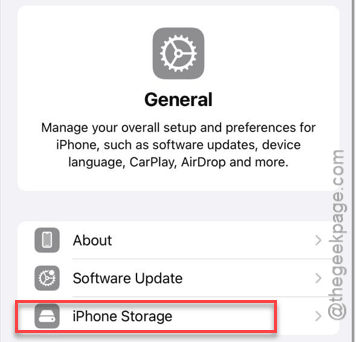
Step 3 – Open the “iPhone Storage” option.
Step 4 – There, you will see the storage condition on your iPhone. Lack of enough storage space can cause problems for the Snapchat.
Step 5 – On the same page, you will see the which files are covering the storage.
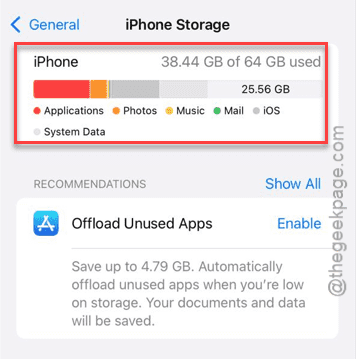
Once you have got the information, you can go ahead and clean up the files or offload any space-mongering app from your iPhone.
When you have enough space, the camera on the Snapchat won’t cause any problems.
Fix 4 – Turn off the Flash
If the camera is still behaving the same way, you must turn off the flash on the Snapchat app.
Step 1 – While you are on the Snapchat app, you will see the Flash icon ⚡ on the left pane.
Step 2 – Look whether the Flash is active or not. If the Flash is active, tap that once to switch it off.
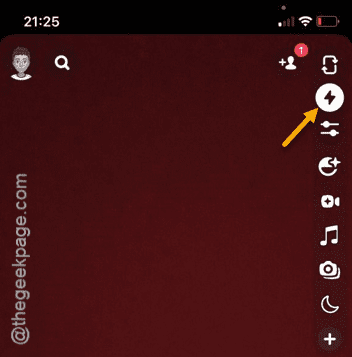
Once you have switched off the flash, try to take a snap. Go ahead and take multiple snaps in the Snapchat app.
Fix 5 – Quit any camera using application
Whether any apps in the background using the camera app? If that is the case, you should close any such app before using the camera on Snapchat.
Step 1 – Swipe upward from the bottom-left corner.
Step 2 – Close all the apps, including the Snapchat app.
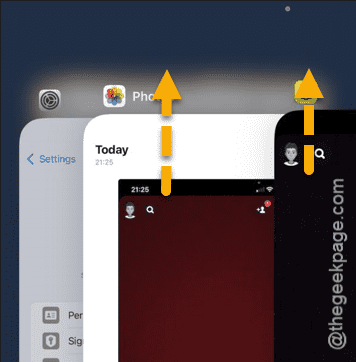
Launch the Snapchat app later, try using the camera there in the app. Check if this has worked out and solved the issue.