Not getting any iMessage on your Apple Watch? The continuity feature on the Apple Watch does mirror all of your iMessage alerts to the wearable. If you are using a GPS+Cellular version of the watch, you can access the messages irrespective of your iPhone’s location. So, if you are having some problem with the iMessage on your Apple Watch, this troubleshooting guide is for you.
Fix 1 – Refresh the iMessage system
You have to refresh the iMessage system from the iPhone. This setting is directly synced with your Apple Watch.
Step 1 – Load up the Settings utility on your iPhone.
Step 2 – After opening up the Settings page, tap to load up the “Apps” tab.
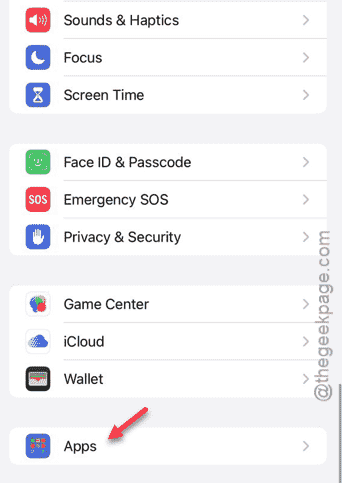
Step 3 – Inside the Apps tab, open up the “Messages” tab.
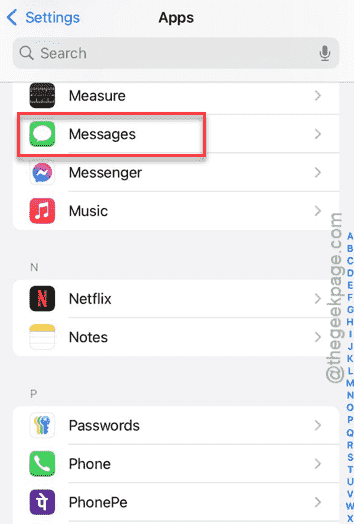
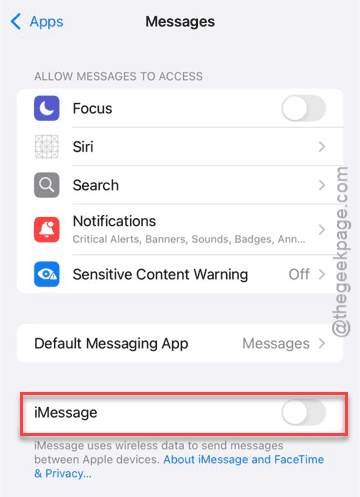
Step 4 – In the Messages tab, find the “iMessage” toggle and disable that.
Step 5 – Wait for a few seconds and re-enable the same on your iPhone.
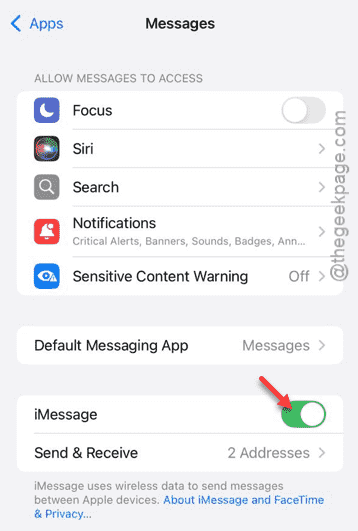
This is the typical process of refreshing the iMessage on your iPhone. Return to your watch and check whether the iMessage is working or not.
Fix 2- Check the connection on iPhone
Your watch must be connected to your iPhone.
Step 1 – To check the status on the watch, press the side button on your watch once.
Step 2 – When you reach the Control Center, tap the small icon panel at the top to open up the status of the device.
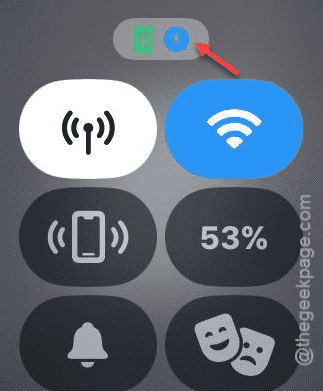
Step 3 – You can check the current status of the iPhone directly from there.
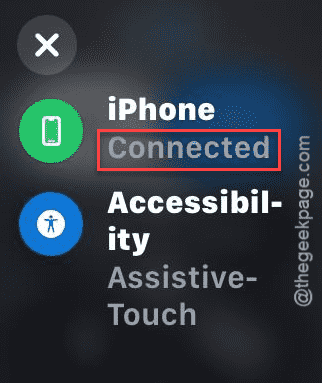
If it shows ‘Disconnected’ status in there, you have to reconnect it.
Step 4 – Open up the Settings page on the watch. Simply, press the crown once and then, open it up.
Step 5 – This time, open up the “Bluetooth” settings.
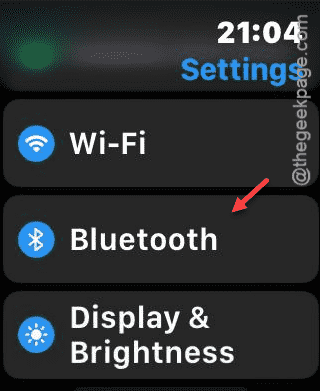
Step 6 – After this, turn on the “Bluetooth” settings from there.
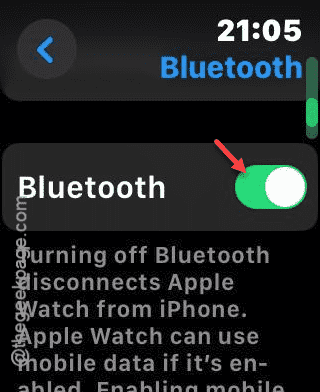
Once you have turned it on, watch will get connected to your iPhone.
Fix 3 – Install the latest version of watchOS
You must get the latest version of the watchOS loaded on your iPhone to resolve the problem.
Step 1 – Go to your watch Settings once again.
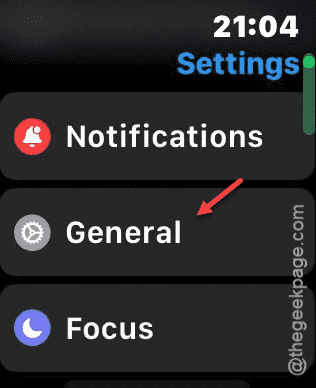
Step 2 – This time, load up the “General” tab.
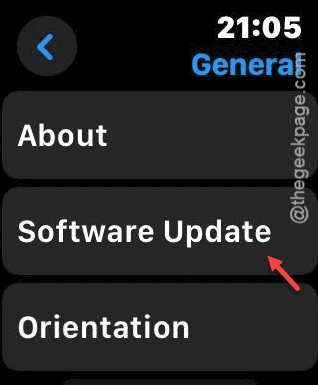
Step 3 – Find the “Software Update” section there and reach there.
Step 4 – If an update is pending, tap to update the watchOS.
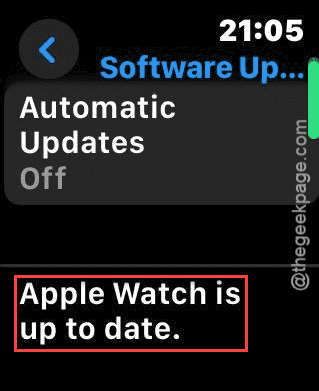
After installing the update, this problem with the iMessage will be gone.