Getting too many phone calls on your Apple Watch? While you can easily call someone or receive calls directly from the watch, sometimes the same feature can become bothersome. The following steps will be helpful in denying the calls directly on your Apple Watch and fix the problem at your end.
Why you may want to disable the phone calls feature on your Apple Watch?
The advantages of the Apple Watch can not be ignored when you are not near your iPhone. A simple tap on the watch and you can take up that important call right away. But, there are some times when you want to stay away from all the calls. Like, if you have gone out for your jogging, and you are getting spammed with sales and marketing calls. If that is the case, we are here for you.
The calls that you get on your iPhone gets directly shared to your Apple Watch. So, there is a toggle that allows the moderator to ‘mirror’ the calls on your wearable. We have to make a change in that particular settings and turn off the call notification system on the watch. We recommend you adhere to the steps mentioned here, and it will be done in no time.
Fix – Change the Call notification system
You have to execute this set of steps on the Watch app on your iPhone.
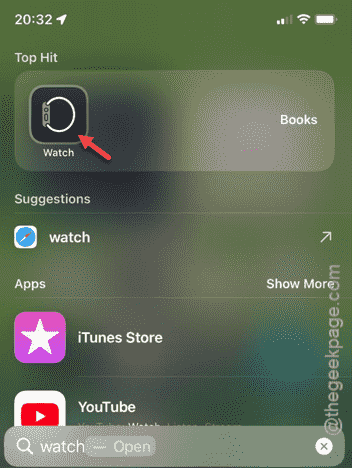
Step 1 – To do this, load up the “Watch” app using the search box.
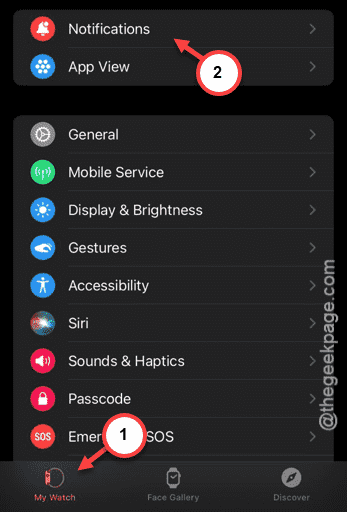
Step 2 – Go straight to the “My Watch” panel.
Step 3 – Next, tap the “Notifications” pane at the top.
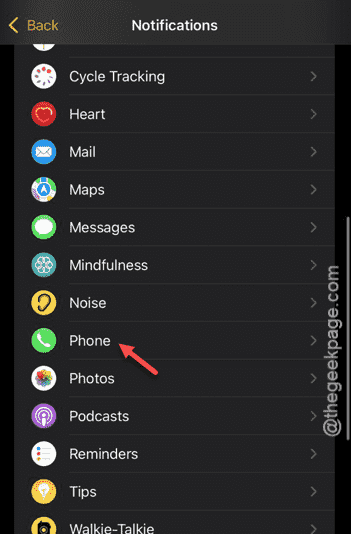
Step 4 – Inside you will find the list of apps to have access to the notification system on the watch.
Step 5 – Find out the “Phone” app and open it up.
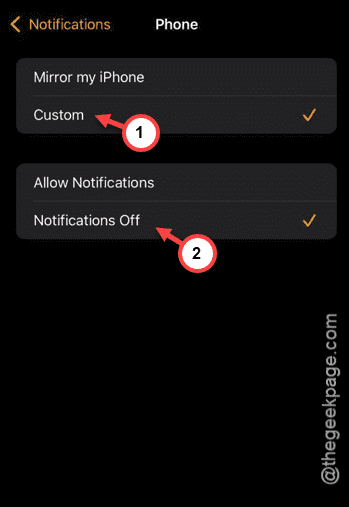
Step 6 – Now, here you have to set this to “Custom” mode.
Step 7 – Finally, tap “Notifications Off” to turn it off.
After changing these settings, you won’t get the call alerts anymore. See if this works or not.