Having some problem with the swipe up feature on the Apple Watch? The swipe up feature on the watch is useful in navigating across the watchOS. But, apart from the navigation, it does provide you access to the notification center directly from the watch screen. If this particular action gets impaired on your watch, the ease of using the device does the same as well. These tips will be helpful.
Why the swipe up feature is not working on your Apple Watch?
The swipe up gesture on the Apple Watch is a basic functionality of the device. But, due to some reasons, like the bug or glitch in the watchOS, the swipe up feature may stop working. For the initial workarounds, you should try clearing up the watch surface. If anything is present on the watch surface, it won’t register your swipe up gesture. So, cleaning up the watch should be your starting point.
You can use the crown to mimic the same swiping gesture on your watch. So,
Fix 1 – Forcefully restart the watch
If the problem has originated from just a mere bug in the watchOS, you can fix it just by executing these steps.
Step 1 – Just press and hold the crown and the side button on the watch. You have to do this until the Apple Logo shows up on your Apple Watch.
Step 2 – After the logo shows up, it may take some time for the watch to become operational.
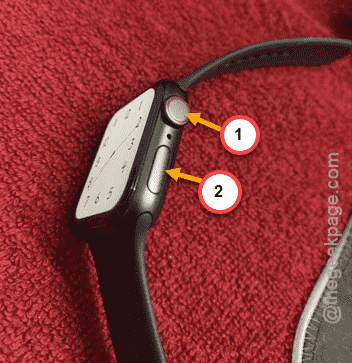
After it becomes operational, you can use the swipe gestures once again. See if that works or not.
Fix 2 – Disable the Water Lock
The ‘Water Lock’ mode on the Apple Watch restricts the otherwise normal function of your watch.
Step 1 – To disable it, you can just press the side button on the watch.
Step 2 – Next, scroll up or down through the Control Center and turn off the “Water Lock” mode.
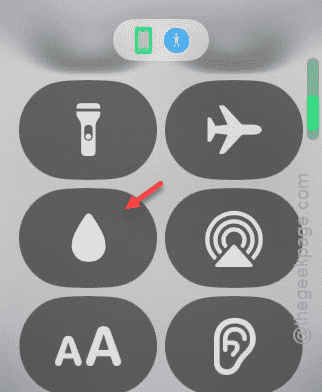
Once you have revoked it, you can use the swipe up gestures once again.
Fix 3 – Change the watch face
If the current watch face on your Apple Watch contains some complication that can restrict the swipe up gesture to some extent, you should consider switching it.
Step 1 – Load up the Watch app on your iPhone to do this.
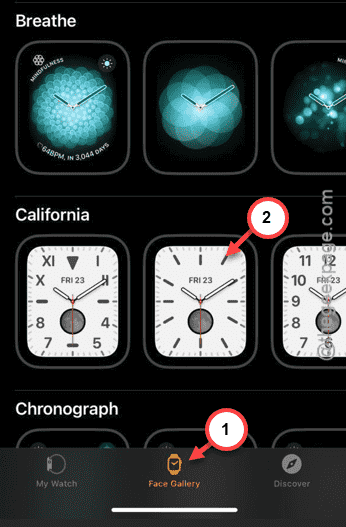
Step 2 – Go straight to the “Face Gallery” page.
Step 3 – Select a new watch face from the list and open it up.
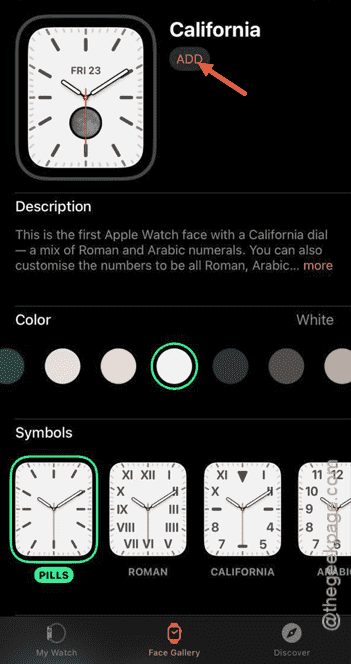
Step 4 – Tap “Add” to use that watch face on your Apple Watch.
Now, try to reach the notification center on your Apple Watch. See if you can do that.
Fix 4 – Clean up the watch
An unclean, oily watch surface can be the reason why you can’t use the swipe up gesture on your device. So, you must clear up the Apple Watch properly.
See if you can actually use it or not.