Does your Apple Watch not recognizing your standing posture automatically? Your Watch needs to detect whether you are standing or sitting somewhere, so that it can trigger other fitness sensors and record metrics. Taking care of this issue should be your utmost priority, and this won’t even take long.
Fix 1 – Enable the Wrist Detection
The wrist detection feature must be enabled on the watch for it to recognize your standing activity.
Step 1 – Open up the Watch app.
Step 2 – Next, reach the “My Watch” panel.
Step 3 – Later, go to “Passcode” box.
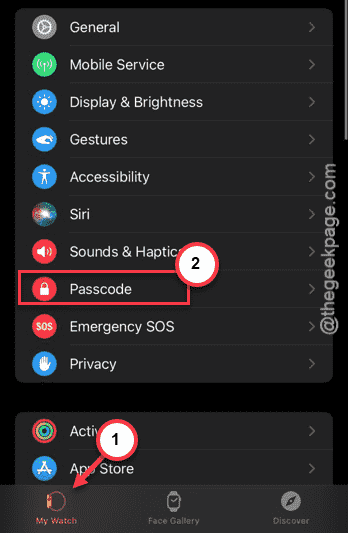
Step 4 – Inside you shall find the “Wrist Detection” settings. If it is turned off, enable it immediately.
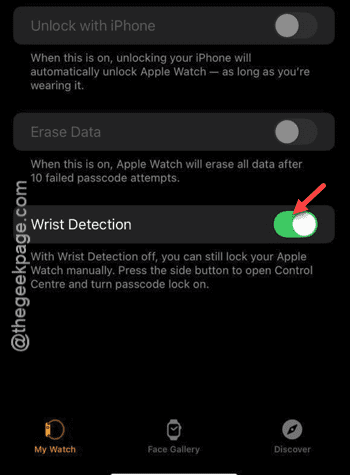
After you have enabled the wrist detection feature, the watch can automatically detect your current posture.
Fix 2 – Wear the watch correctly
You must wear the Apple Watch tightly. Even if the wrist detection is turned on, the watch can’t identify your correct posture, if the watch band is loose.
So, just wear the Apple Watch more firmly on your wrist. Attach the band in another hole to make the watch band tighter. You should wear the watch right above the wrist bone to get better measurements from the sensors.
Fix 3 – Enable the Fitness tracking
Fitness Tracking feature is enabled on your iPhone to check.
Step 1 – Open up the Settings utility on the iPhone.
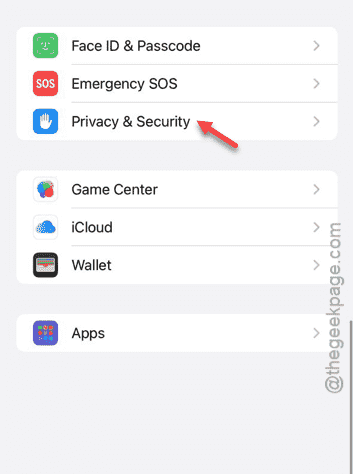
Step 2 – Next, scroll down the “Privacy & Security” settings.
Step 3 – Later, load up the “Motion & Fitness” settings.
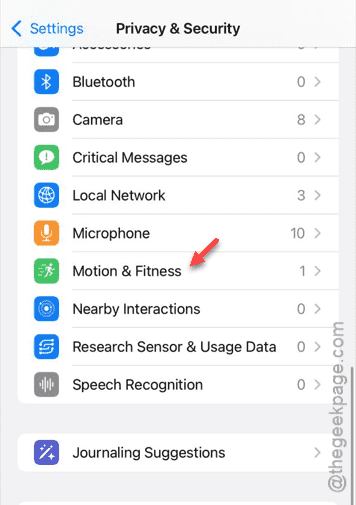
Step 4 – Enable the “Fitness Tracking” feature in there.
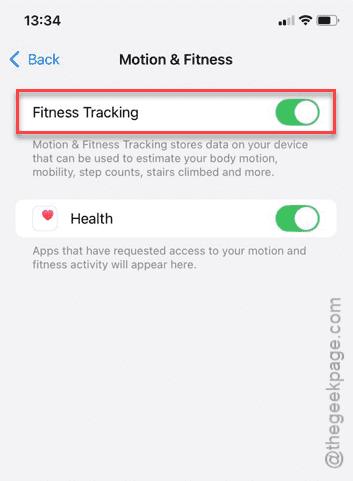
After enabling the fitness tracking feature, your watch should register whether you are standing or resting somewhere.
Fix 4 – Reset the Fitness Calibration data
You can reset the fitness calibration data from your iPhone.
Step 1 – Load up the Watch app once more on your phone.
Step 2 – Then, get to the “My Watch” section.
Step 3 – After this, tap to open up the “Privacy” section.
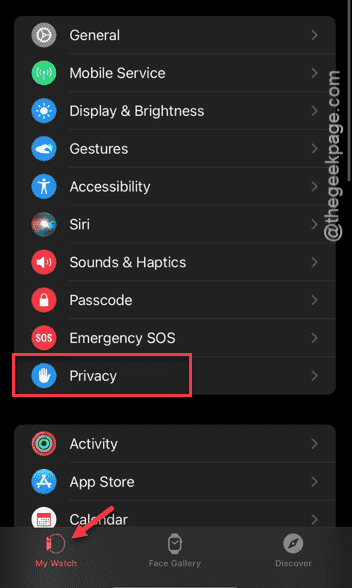
Step 4 – In the Privacy settings, use the “Reset Fitness Calibration Data” option.
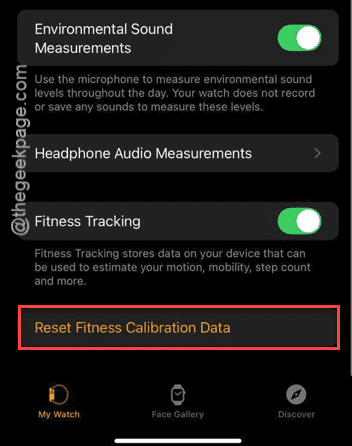
Step 5 – Use the “Reset Fitness Calibration Data” to refresh the calibration data.
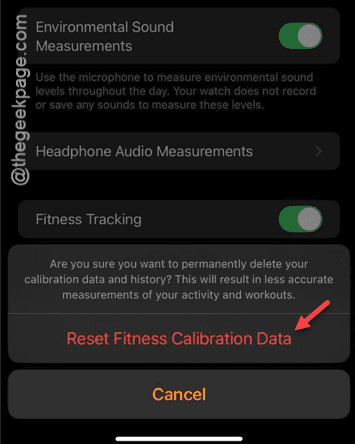
This should refresh the calibration data collected by the sensors on your Apple Watch. Do check whether this works out for you!
Fix 5 – Unpair the watch and pair it up again
You have to unpair the Apple Watch. Then, you can pair up the watch afresh to fix the problem.
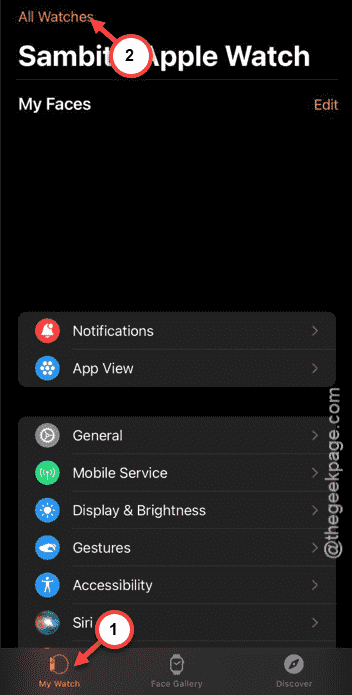
Step 1 – Open up the Watch app on the Apple Watch. Go to “My Watch” page.
Step 2 – Next, tap the “All Watches” on the top.
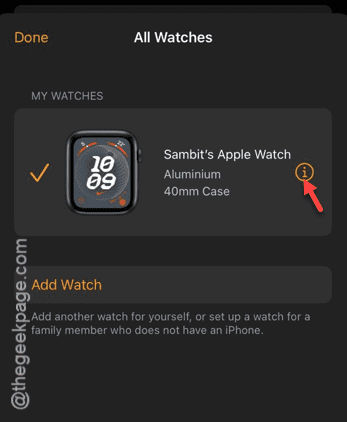
Step 3 – Next, tap the “i” button next to the Apple Watch to load up the Apple Watch settings page.
Step 4 – Later, use the “Unpair Apple Watch” feature on the same page to unpair it.
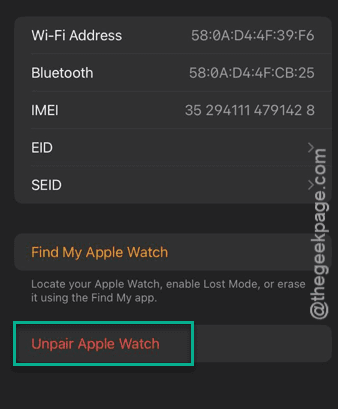
Step 5 – When it asks for your Apple ID password, enter it and the wearable will get unpaired in no time at all.
After unpairing the watch, you can pair it up again in no time. Simply, set up the device like you would have done for the first time after getting it.
The watch should start to record your standing gestures again in no time. Hope these works out for you!