Getting this “Failed to download necessary files, turn on voice control” error message while trying to access the Voice Control module on your iPhone? The Voice Control module is the part of the accessibility features that iOS devices offers. We have explained the functionality of the Voice Control function, the reason why the error has appeared along with the proper solution to tackle it.
What is Voice Control, and why am I seeing this error message on my iPhone?
Voice Control is an accessibility feature on your iPhone that lets you take control of several operations of the iPhone just by using voice commands. The feature becomes essential when you don’t have the direct, tangible access to the device, but you have to perform certain actions.
Though this feature works flawlessly without any problems in the iOS, it needs to download the language information package from the server. There is support for 6 main languages, excluding several dialects from other regions. So, when the Voice Control feature is enabled, it starts to download the necessary files. When the feature is still downloading the files, if you try to use the Voice Control, it simply shows up the “Failed to download necessary files, turn on voice control” message on the screen.
Fix – Change the Siri language and re-engage Voice Control
You can fix this by following these three steps on your iPhone. You have to disable the Voice Control, change the Siri language and re-enable the Voice Control.
Step 1 – Turn off the Voice Control
You have to turn off the Voice Control feature.
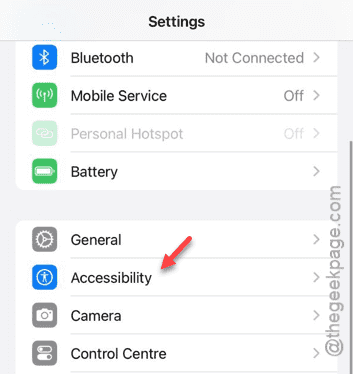
Step 1 – Visit the iPhone Settings page and open up the “Accessibility” page.
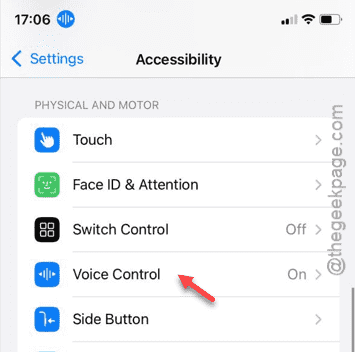
Step 2 – You have to find the “Voice Control” accessibility feature in there.
Step 3 – Turn off the “Voice Control” module in there.
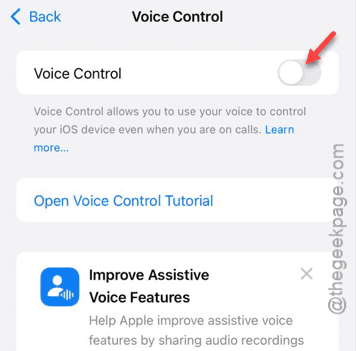
Quit that page after this.
Step 2 – Change the Siri language
Now, you have to change the Siri language from the Settings page.
Step 1 – To do that, re-open the Settings page.
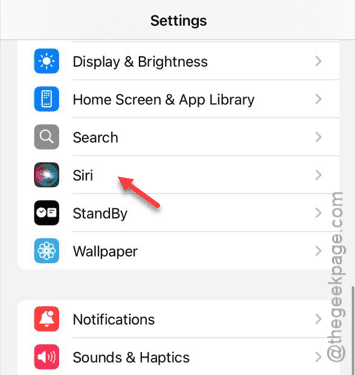
Step 2 – Open up the “Siri” settings, there.
Step 3 – Next, open up the “Languages” tab.
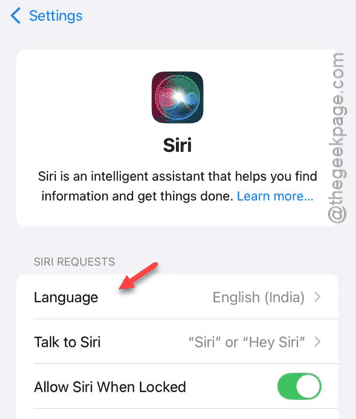
Step 4 – Switch to the “English (United States)” module.
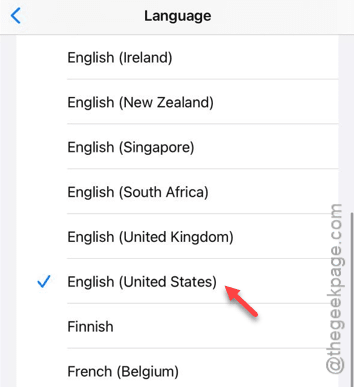
Once you have changed the language of Siri, you can proceed to the final step of the process, that is to re-enable the Voice Control module on the device.
Step 3 – Enable the Voice Control
The next part of the process is very simple. Just enable the Voice Control module.
Step 1 – After loading up the Settings page, open the “Accessibility” feature.
Step 2 – Next, load up the “Voice Control” module.
Step 3 – Finally, enable it from there.
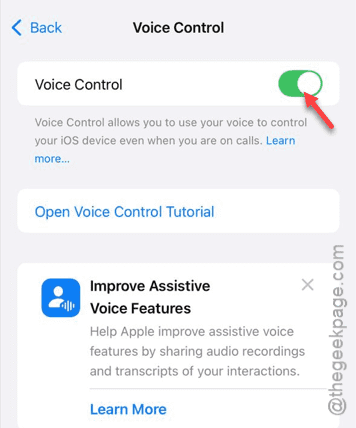
You won’t face any problem with the Voice Control anymore. Check if this works!