Can’t see any subtitles on the Prime Video app on your iPhone? The subtitles on the Prime Video provides an essential support for the viewers. While streaming videos, subtitles can be optional if you are well versed in the language of the movie, it is an absolute necessity while viewing the subbed videos. You can troubleshoot the problem on your own if you just follow the steps in here.
Fix 1 – Make sure the Subtitles are on
The problem that you are having with the subtitles can be due to wrong settings in the video player.
Step 1 – Open the Prime Video and start to stream the movie/web series of your choice.
Step 2 – Then, tap the subtitles button in the player.
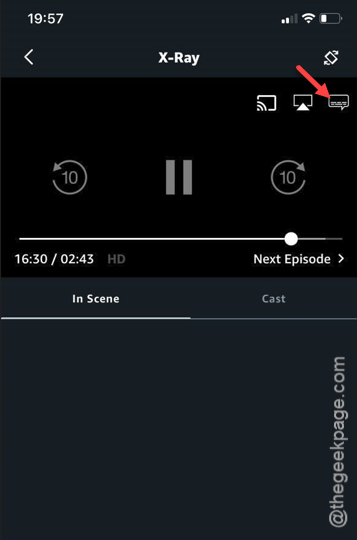
Step 3 – Make sure the “Off” option is not selected in the Subtitles option. You can simply select the subtitle of your choice from the same subtitles panel.
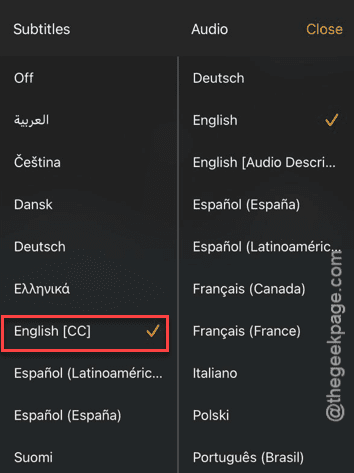
NOTE – You have to remember the Prime Video recalls your preference and set them to default to provide you a seamless experience across the platform. So, if you have turned off the subtitles or changed the Subtitle language, it will remain in off mode for all the videos that you stream on Prime Video app.
Fix 2 – Turn on Closed Captions
You can turn on the Closed Captions option from the iPhone settings.
Step 1 – At first, load up the Settings on the iPhone.
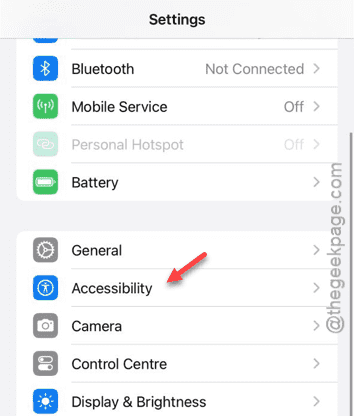
Step 2 – Next, open up the “Accessibility” module.
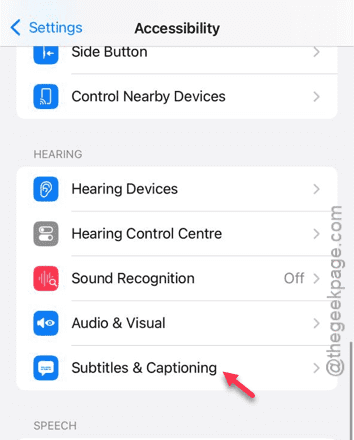
Step 3 – Find the “Subtitles & Captioning” features.
Step 4 – Turn on the “Closed Captions+SDH” option.
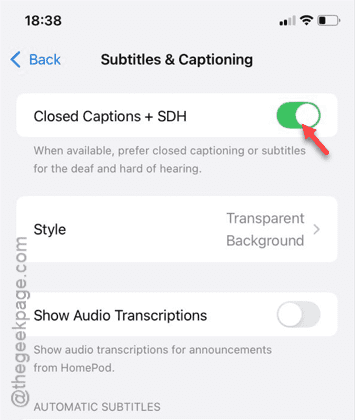
After this, enabling the closed captions, you will get to see those subtitles once again.
Check if this works or not.
Fix 3 – Offload the Prime Video app
Offload the Prime Video application from the iPhone. Later, reinstall it and that should take care of this problem.
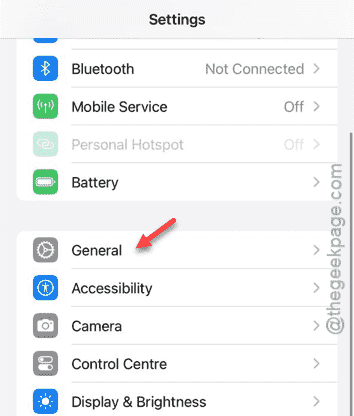
Step 1 – Open the iPhone Settings.
Step 2 – Next, go to the “General” settings tab.
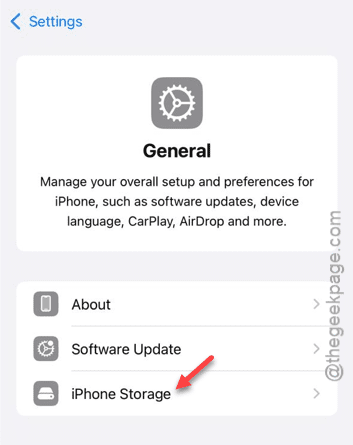
Step 3 – Next, go to the “iPhone Storage” function.
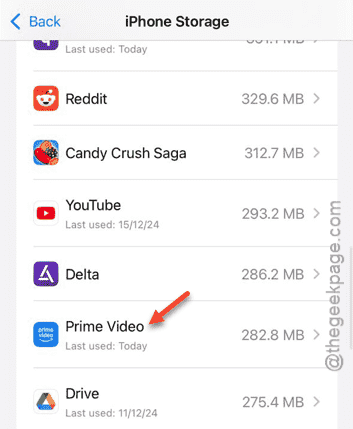
Step 4 – After opening the iPhone Storage function, tap the “Prime Video” app.
Step 5 – Tap the “Offload App” option.
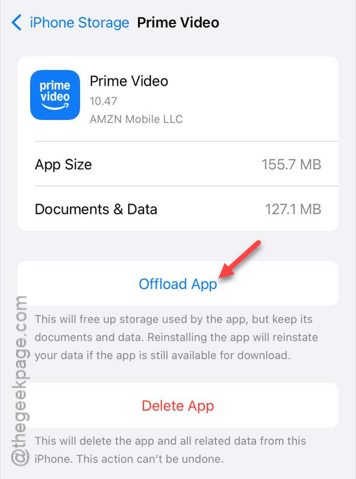
This doesn’t delete the app like the usual uninstallation process does.
Step 6 – Within a few seconds, you will find the “Reinstall App” option there.
Step 7 – Tap the “Reinstall App” to reinstall the app.
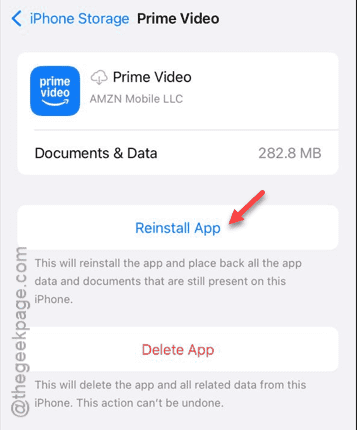
After reinstalling the Prime Video app, the subtitles will start to work again. See if this works!