Is the Maps or GPS not working on your iPhone? None of the Google Maps or Apple Maps will function if the GPS is not working on your device. Troubleshooting the GPS issues is not the same as fixing other problems with the Google Maps or Apple Maps. Try these fixes to solve the problem.
Fix 1 – Change the Maps settings
Maps must have continuous access to your location in order to deliver the proper information.
Step 1 – To fix this, load up the Settings page, first.
Step 2 – Next, load up the “Apps” tab.
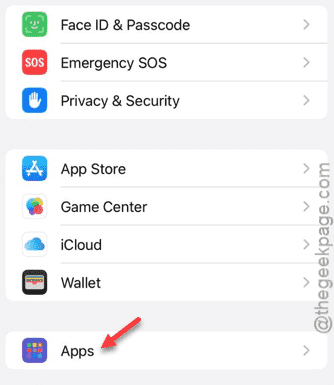
Step 3 – After opening the Apps page, open the “Maps” or “Google Maps“, where you are facing this issue.
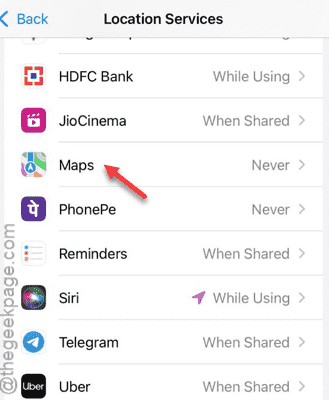
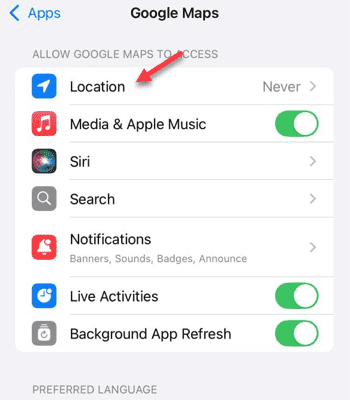
Step 4 – Next, tap the “Location” permission to edit that.
Step 5 – On the subsequent step, set this to “Always” or “While using the App” option.
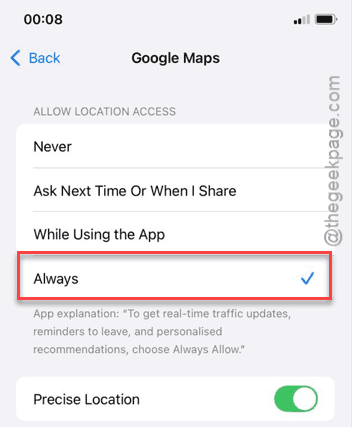
After this, you should not any trouble using the GPS or the Maps app.
Fix 2 – Change the Location Services settings
If your device has the Content Restrictions, you must allow the location permission to the Maps app.
Step 1 – Load up the Settings page.
Step 2 – Next, open the “Screen Time” settings.
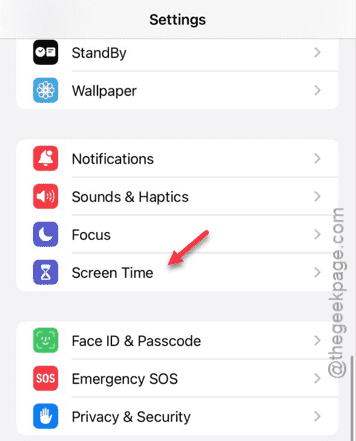
Step 3 – Go to the “Content & Privacy Restrictions” module.
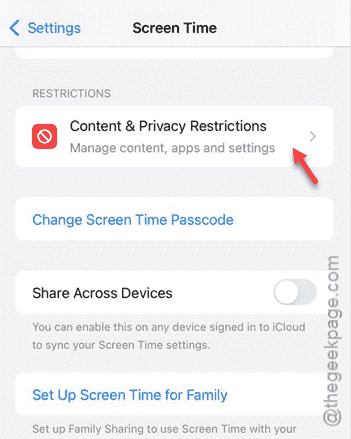
Step 4 – Next, open the “Location Services” setting.
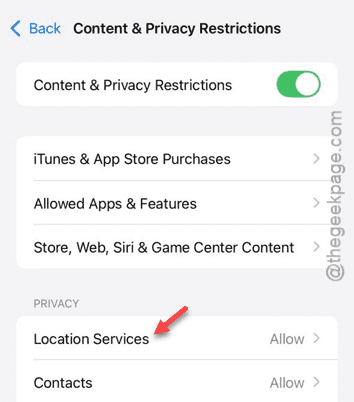
Step 5 – Make sure to first select the “Allow Changes” module.
Step 6 – Then, open the “Location Alerts” option.
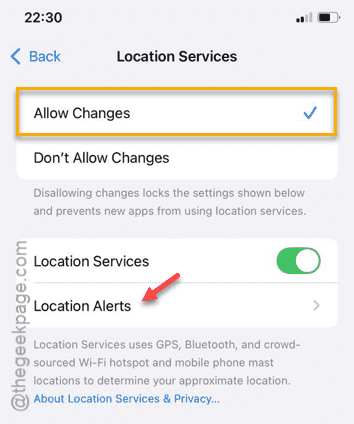
Step 7 – Turn on the “Show Map in Location Alerts” option.
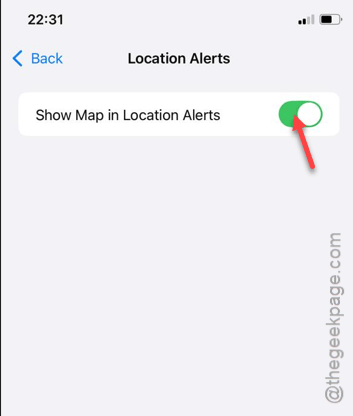
Check if the GPS and Maps is working on your device.
Fix 3 – Refresh the network connection
See whether the network is functioning correctly or not.
Step 1 – Open up a browser and visit any website (for an example, normal Google home page).
Step 2 – If there is any network issue, the webpage won’t show up or the loading process will take too much time.
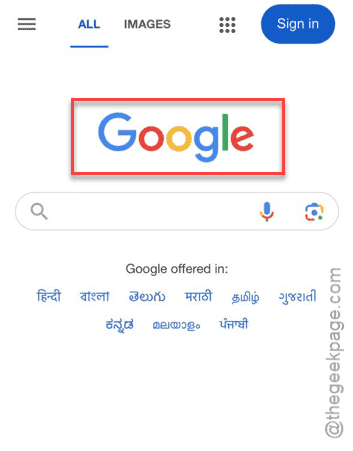
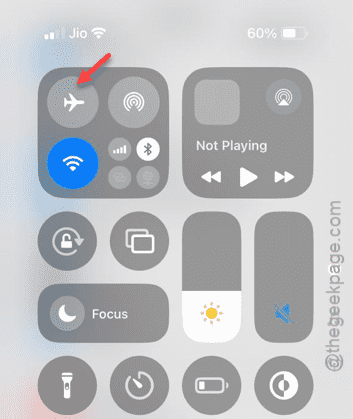
Step 3 – If it is taking too much time, you can just open the Control Center.
Step 4 – Turn on the ‘Airplane Mode‘ from there.
Step 5 – Turn off the ‘Airplane mode‘ after a few seconds.
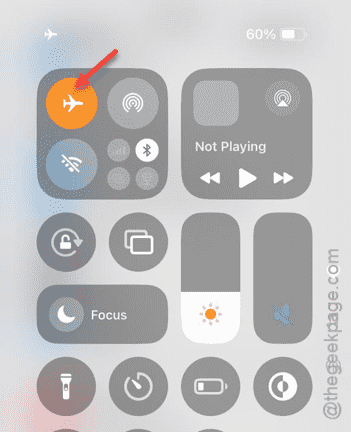
This should refresh the network connection on your iPhone. Try to scan the map for your location. See if this works.
Fix 4 – Reset the network settings
If the GPS is still working, or you can’t access the Maps app, you must reset the network settings completely to fix the problem.
Step 1 – Go straight to the iPhone Settings.
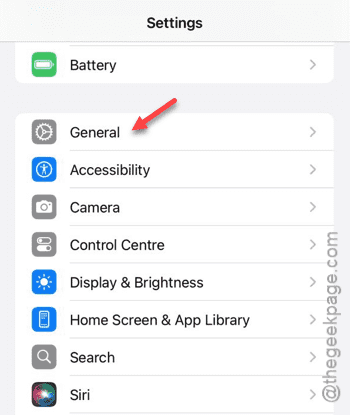
Step 2 – Then, tap the “General” part of the Settings.
Step 3 – Next, tap the “Transfer or reset iPhone” setting.
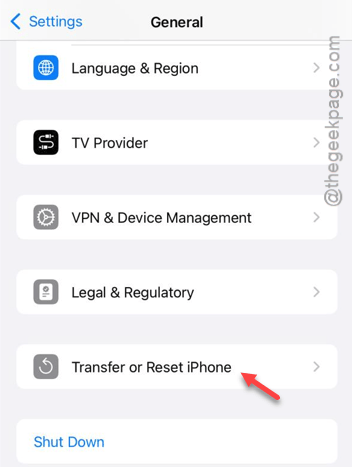
Step 4 – Further, tap the “Reset” option.
Step 5 – Finally, touch the “Reset Network Settings” option.
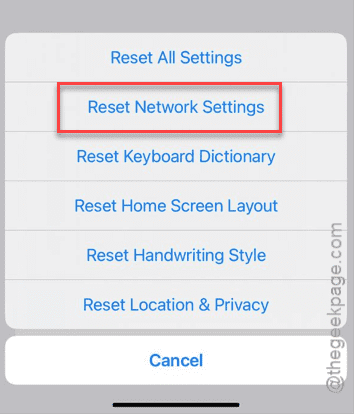
Once you verify and follow through the steps, the network on your iPhone will get reset. Soon, your iPhone will also get rebooted.
Reconnect to your Wi-Fi and, later, check whether the Map or GPS is working or not.