You are using your PC and suddenly your screen goes to the full black mode and you can not see anything on screen other than a cursor? Don’t Panic! This issue in Windows 10 is common and certainly curable.
These are some solutions that will help if you are facing Black screen with cursor issue.
Note: Before Trying , you may also chose to uninstall any third party software , after installing which this problem may have popped in to your PC. Many users reported that after installing few theming apps namely UXStyle, StartIsBack etc. this problem appeared. Once they uninstalled these apps, the problem got fixed.
Method 1 – Via Registry Editor Tweak
1. Press CTRL + Alt+ Del key Together at Once. In next screen, Choose task manager.

2. Choose File.
3. Click on Run New Task.
4. Write Regedit in it.
5. Check the Option saying Create this Task with Administrative Privilege.
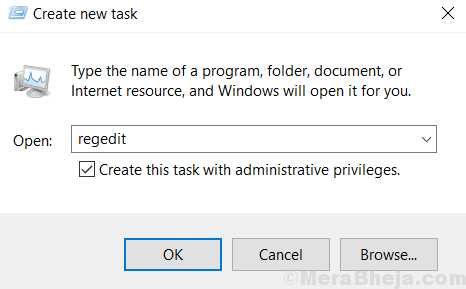
6. Now, Once the Registry Editor Opens up, browse to The Following path Given below
HKEY_LOCAL_MACHINE\SOFTWARE\Microsoft\Windows NT\CurrentVersion\Winlogon
7. Once YOU reach Winlogon, Locate Shell in the Right side.
8. Now, double click on shell to modify it.
9. Now, make sure that value data is explorer.exe.
If its something else, change it to explorer.exe.
10. Press Ctrl + Alt + Delete key at same time.
11. Now, Click on power button located at bottom right.
12. Restart your PC.
What if you are not able to Boot and pressing CTRL + Alt+ Del doesn’t do anything ?
If you are not being able to log in to your system and pressing CTRL + Alt+ Del does nothing, then follow the steps below to boot into advanced repair mode.
1. Make sure your PC is turned OFF. If its not, then press the power screen for 4-5 seconds to forcefully turn it off.
2. Now, press the power button once to start the PC.
3. Now, As soon as something appears on the screen (Usually PC manufacturer’s logo), just press the power button and keep it pressed for 5 seconds , so that it gets forcefully turned off again.
4. Now, start again and repeat the same process.
After , doing this process 2 to 3 times , you will reach a screen called preparing automatic repair.
5. A next screen will appear, saying diagnosing your PC.
6. Now, an Automatic screen will appear with options like restart and advanced options.
Just click on Advanced options.
7. Now, Click on advanced options.
8. Now, if this problem happened due to a recent update or something like that then : –
Click on startup repair.
Now, let startup repair fix your system.
If this does not work, then try booting into safe mode and then follow step 1 again to press CTRL + ALT+DEL to open task manager and then regedit.
How to go into safe mode from here
1. Click on startup settings.
2. Click on restart.
3. Now, press 4 from keyboard to enter safe mode.
Now, follow from step 1 of Method 1 in this article again to press CTRL + ALT+DEL and to open task manager and then opening regedit
Method 2 – Disable Appreadiness service
1. Press CTRL + Alt+ Del key Together at Once. In next screen, Choose task manager.
2. Choose File.
3. Click on Run New Task.
4. Now, type services.msc in it and click OK.
Check create this task with admin privileges.
5. Now, double click on App readiness service.
6. Choose startup type as disabled.
7. Click on apply and OK.
8. Click on Task manager File > Run new task again.
9. Type cmd.exe in it and click OK.
Check create this task with admin privileges.
10. Now, type the following command to shutdown PC using command.
shutdown /s /f
11. Now, restart PC.
Fix 3 – copy caches folder from a working account
1) Restart your computer
2) Login with the another working user account existing on your PC.
If you don’t have one , you can instantly create an administrator account by running the command net user administrator /active:yes in command prompt as admin mode.
Note: Another option is to copy these files from another windows computer.
3) Now, open file explorer and paste this address in file explorer address bar
C:\Users\%username%\AppData\Local\Microsoft\Windows\.
4) Copy the Caches folder
5) Now, go to the corrupted account and Navigate to C:\Users\%username%\AppData\Local\Microsoft\Windows\.
If you can’t login into your corrupted account, then login using safe mode, described in method 1.
6) Replace the Caches folder with the folder from the working user file.
Method 4 – Turn off Fast Startup
STEP 1 – Open run box by hitting Windows and R at the same time. Type powercfg.cpl and hit Enter.
STEP 3 – Click on Choose what power button do option on the left pane.
STEP 4 – Click Change settings that are currently unavailable link.
STEP 5 – You will see more options under shutdown settings now. Uncheck on Turn on fast startup (recommended) and click on save settings.
Method 5 – Reset Project Screen settings
Most times this error happens because your computer can not determine that you are connected to an external display or not. You can change your project settings by the following process.
STEP 1 – While your computer is off, connect an external Display
STEP 2 – Turn on your PC and wait till it fully loads up.
STEP 3 – Invoke Easy Display Switcher by pressing Windows and P at the same time. Choose PC screen only option.
STEP 4 – Shut down the computer and disconnect the external screen.
STEP 5 – Start your computer and check that error is gone or not.
Method 6 – Uninstall your Graphics Card Driver
If you are struck in Black Screen mode you can easily tackle this issue by uninstalling your graphics card driver. Graphics card driver is the main culprit in this error. Multiple graphics driver is more prone to this error. Follow below step to know how to get out from a black screen and remove graphics card drivers.
STEP 1 – If you are on black screen, Press Ctrl + Alt + Del in order to start Task Manager.
STEP 2 – From the task manager we will able to start device manager window. Click on the file menu and select Run new task option.
STEP 3 – Type devmgmt.msc and press Enter. It will open Task Manager. If you are successful in opening device manager jump to step 4 otherwise read ahead.
If you are not able to open task manager you have to start your computer in safe mode. Follow this steps to start your computer in safe mode.
i) When your computer boots up, press F4 to access boot options.
ii) In boot options, Troubleshoot > Advanced Options > Startup Settings.
iii) You will now have options to start your computer in safe mode, choose safe mode with network.
iv) Press Windows + X and choose Device Manager to open Device manager.
STEP 4 – Locate your Graphics card from the devices list and choose Uninstall from right click menu.
STEP 5 – Click Uninstall to confirm.
Method 7 – Update your Graphics card
In case of many users, this issue is happened due to faulty or misconfigured graphics cards. This error can also happen if your computer has two different graphics drivers. Updating your graphics card driver can be easy solution for this issue.
You can download graphics card driver on your PC manufacturer website or graphics card website. Make sure that you are choosing right drivers for your computer while downloading them. Check for the error after updating your graphics card driver.
Method 8 – Reset your Computer
If none of the above methods worked for you then resetting your computer is the last option for you. Follow these steps to reset your PC.
STEP 1 – Press Windows + I to open settings. Choose Update and Security settings from the main menu.
STEP 2 – Choose Recovery from the left pane. You will see now Reset this PC option on the right side. Click on Get Started to start resetting your computer.
STEP 3 – Choose to Keep my Files (You can also choose to Erase Everything of you don’t want to keep your files).
I hope that you are able to solve this black screen with cursor issue with the help of these methods. If you have any query regarding these methods feel free to tell us in comments.
Note: – If all of these not work, then Go to your BIOS and reset settings to default. This also fixed this issue for many users.