Does your FaceID not working on Telegram app? FaceID provides an extra layer of security to the personal chats on Telegram. So, not getting to use the Face ID on Telegram can compromise the security of those chats. These solutions will help you fix the Face ID system on your Telegram app.
Fix 1 – Clear the Camera
If there is a layer of dust or other particles have accumulated on the front camera surface on your iPhone, the Face ID won’t work properly.
Step 1 – So, lock your iPhone.
Step 2 – Next, while the iPhone’s screen is black, take a clean microfiber cloth to dust off the Face ID portion (the notch or Dynamic Island portion, just beside the front camera).
Once you have cleared it, try to use the Face ID in Telegram once more.
Fix 2 – Force close and re-open Telegram app
Try force-closing and re-opening the Telegram app.
Step 1 – Just slide one of your fingers from the bottom to middle of the screen to view the concurrent apps.
Step 2 – Then, close the Telegram app from there.
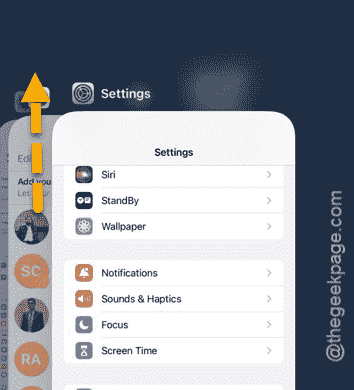
Step 3 – Later, re-open the same Telegram app and see whether you can use the Face ID or not.
This can be the solution for your issue, if the problem has stemmed up from a bug in the app.
Fix 3 – Enable the Unlock with Face ID feature
You must enable the ‘Unlock with Face ID’ feature to use that to access Telegram.
Step 1 – While you are in the Telegram app, go to “Settings” tab.
Step 2 – Next, tap the “Privacy and Security” option.
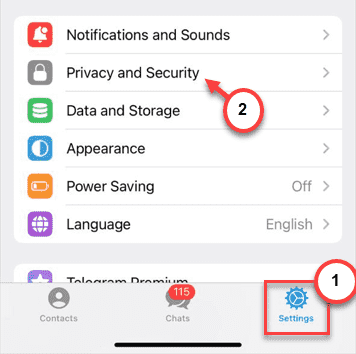
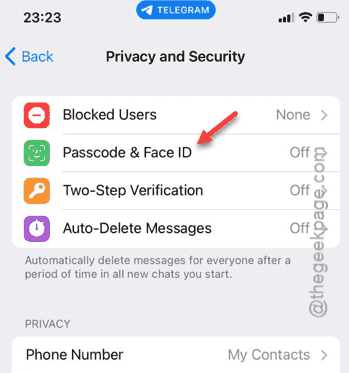
Step 3 – Then, touch to open the “Passcode & Face ID” option.
Step 4 – Tap the “Turn Passcode On” option to proceed.
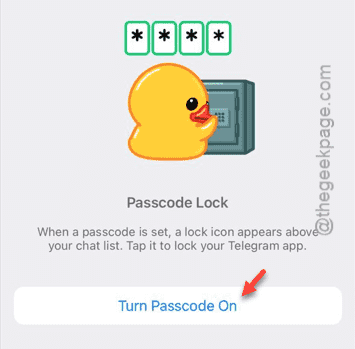
Step 5 – Next, tap the “Passcode Options” option.
Step 6 – Later, tap the “4-digit Numeric Code” feature.

Step 7 – Input a new 4-digit code of your choice, and later, verify that.
Step 8 – Once you are done and has landed on the Passcode Lock page, enable the “Unlock with Face ID” feature.
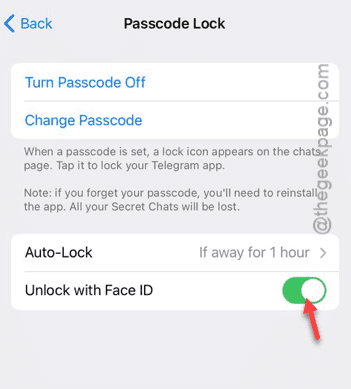
After this, quit the Telegram app.
Now, you can use the Face ID to access the Telegram app.
Fix 4 – Allow FaceID access to Telegram
You must permit Telegram app to access the Face ID feature on your iPhone.
Step 1 – To do this, start from opening the Settings.
Step 2 – Later, go to the “Face ID & Passcode” settings.
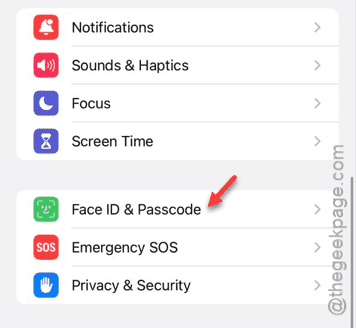
Verify your access, if you are prompted.
Step 3 – In that page, tap the “Other Apps” option.
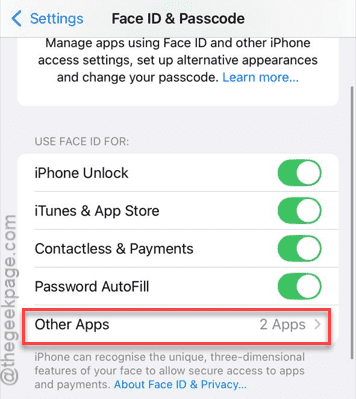
Step 4 – There, you shall find the “Telegram” app. Make sure that it is turned on there.
Quit the Settings page. Check whether you can use the Face ID or not.
Fix 5 – Reset all the settings
If none of the previous solutions have helped you, resetting the settings should help you fix that.
Step 1 – You need to go to the Settings window.
Step 2 – Now, go this way –
General > Transfer or reset iPhone
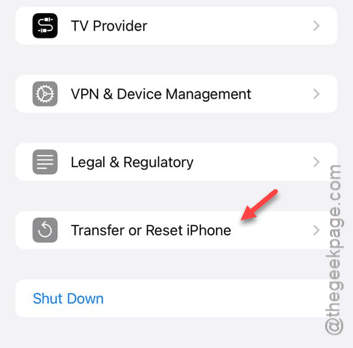
Step 3 – Touch the “Reset” option.
Step 4 – Next, tap the “Reset All Settings“.
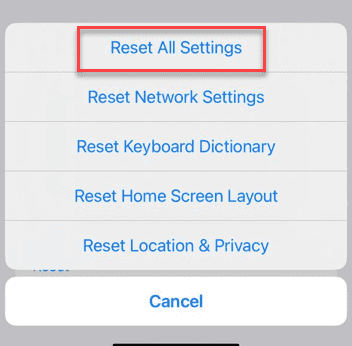
Confirm your action and iPhone may restart once to reset all the iPhone settings. Once this is done, Face ID will work normally on your device.
Check if this works or not.