Is the date complication missing from your Apple Watch? The date that you see that are you seeing directly on your watch face of the Apple Watch is the date complication. Some users have complained of the absence of the date complications on their wearable. If you are having some problem with the date complication from the Apple Watch, this guide will help you out from that.
Fix 1 – Re-download the Calendar app
The problem with the complication is directly linked to the Calendar app on your iPhone and Apple Watch. The absence of the Calendar app causes this problem.
Step 1 – At first, load up the App Store on your iPhone.
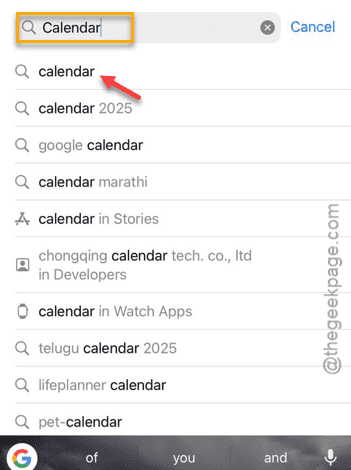
Step 2 – In the App Store, search for the “Calendar” app.
Step 3 – Open up the ‘Calendar’ app from the search results.
Step 4 – Next, reinstall the “Calendar” app on your iPhone.
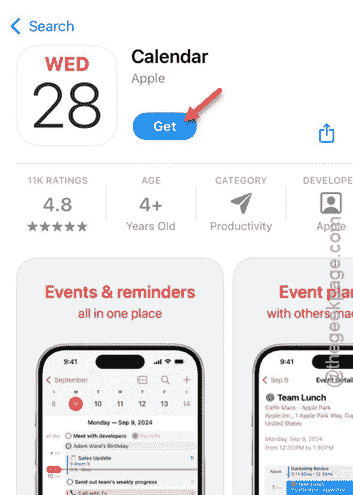
After reinstalling the Calendar app, it will restore the date complication on the watch face.
But, if this doesn’t work, just reboot the Apple Watch once. When the watch becomes operational, you will see the date complication on the watch again.
Fix 2 – Refresh the location privacy settings
You should refresh the location settings from the Watch settings.
Step 1 – Get to the Settings utility on your iPhone.
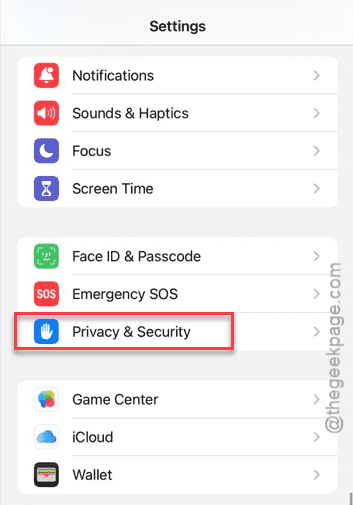
Step 2 – Next, open up the “Privacy & Security” panel.
Step 3 – Then, open up the “Location Services” option.
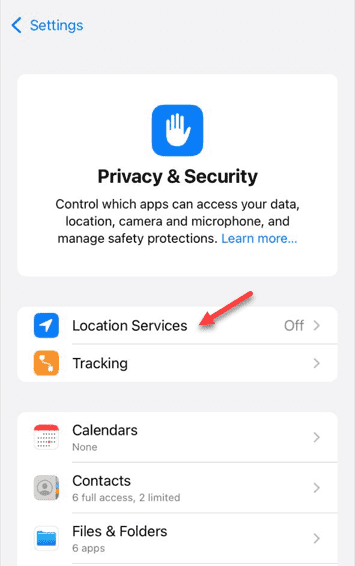
Step 4 – Next, turn off the “Location Services” once.
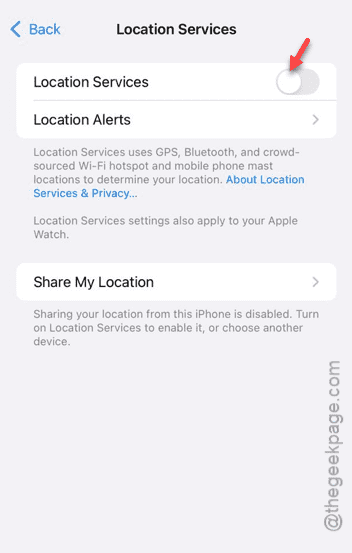
Step 5 – Turn on the “Location Services“, next.
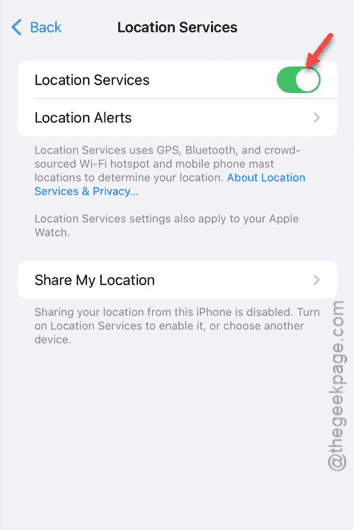
After enabling the location services, check the complications’ status on the watch face. See if this works out for you!
Fix 3 – Force-restart the Apple Watch
If you are still having some trouble with the date complication, you must force-restart the Apple Watch.
Step 1 – At first, long-press the side button and digital crown.
Step 2 – If you press these two buttons together for 10 seconds, the watch will shut down and restart automatically.
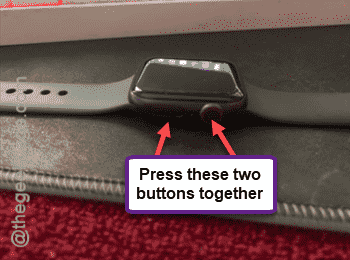
When the Apple Watch restarts, the date complication will show up in the watch properly. Configure it properly from the Watch app.